Introduction
Hi, I'm cardene, a software engineer and technical writer focused on blockchain and AI.
I've also authored Japanese technical books on specification-driven development with LLMs and decentralized application (DApp) development.
I also build and publish a variety of tools, libraries, and open-source projects.
This tutorial uses OpenZeppelin Defender to implement Slack notifications whenever specified smart contract functions are called. The walkthrough reflects the Defender interface and Goerli testnet available at the original publication date in April 2023.
Smart contracts are generally public and their contents can be inspected by anyone.
Anyone can attempt to call publicly accessible functions. By receiving an alert the first time a suspicious address calls a particular function, an operator may be able to intervene before further suspicious activity occurs.
We will implement this notification workflow and explore how it can be applied in different situations.
What Is OpenZeppelin Defender?

What kind of service is OpenZeppelin Defender?
https://www.openzeppelin.com/defender
The official website describes Defender as a secure operations platform for smart contracts.
Its functionality is divided into four main components.
Features
- Admin
- Relay
- AutoTasks
- Sentinels
Let's look at each component in detail.
Admin

Admin automates smart contract administration and helps secure administrative operations.
It provides an interface for managing smart contracts through secure multisignature contracts and timelocks.
Defender Admin itself does not have control over the contract.
Typical use cases include the following.
Use cases
- Manage upgrades to upgradeable contracts.
- Adjust numerical parameters that affect protocol behavior.
- Manage access control lists for executing contract methods.
- Pause a contract in an emergency.
Relay
Relay lets applications submit transactions through a standard HTTP API. It handles secure private key storage, transaction signing, nonce management, gas price estimation, and transaction resubmission.
You do not have to protect private keys in backend scripts or monitor transactions yourself to ensure that they are mined.
Typical use cases include the following.
Use cases
- Trigger state transitions in a contract.
- Update an on-chain oracle using external data.
- Implement meta-transactions to provide a gasless experience.
- Support in-app sign-ups by airdropping tokens to new users.
- Transfer funds from protocol contracts to secure wallets.
- Build bots that interact with smart contract protocols.
AutoTasks
Autotasks let you create automation scripts that interact with smart contracts.
Code snippets can run on a schedule, through webhooks, or in response to transactions.
You can automate recurring actions, including submitting transactions in response to events emitted by contracts.
Typical use cases include the following.
Use cases
- Check a contract's balance and transfer funds to a wallet when it reaches a threshold.
- Update on-chain oracles using information from external APIs.
- Inspect contract data and verify that an off-chain data source is synchronized.
- Update contract data when specified conditions are met.
- Integrate external third-party services using webhooks.
- Offer gasless transactions to DApp users through meta-transactions.
Sentinel
Sentinel monitors smart contracts and sends notifications.
Defender offered two types of Sentinel.
Contract Sentinels
You can monitor transactions involving a contract by defining conditions on events, function calls, and transaction parameters.
Forta Sentinels
Forta Sentinels monitor Forta alerts based on conditions involving contract addresses, alert IDs, and severity.
When a transaction or Forta alert matches your conditions, Defender can send a notification through email, Slack, Telegram, Discord, or Autotasks.
Typical use cases include the following.
Use cases
- Monitor critical operations such as ownership transfers, pauses, and upgrades.
- Raise alerts for potentially dangerous operations in a contract.
- Execute logic when a significant event occurs.
- Integrate existing Web2 tools through email, Slack, Telegram, Discord, or custom Autotask integrations.
- Detect unexpected transaction volumes or alerts.
That covers the main components of OpenZeppelin Defender.
We can now configure the workflow.
Register for OpenZeppelin Defender

First, create an OpenZeppelin Defender account.
https://www.openzeppelin.com/defender
Open the page above and click Sign up for free.
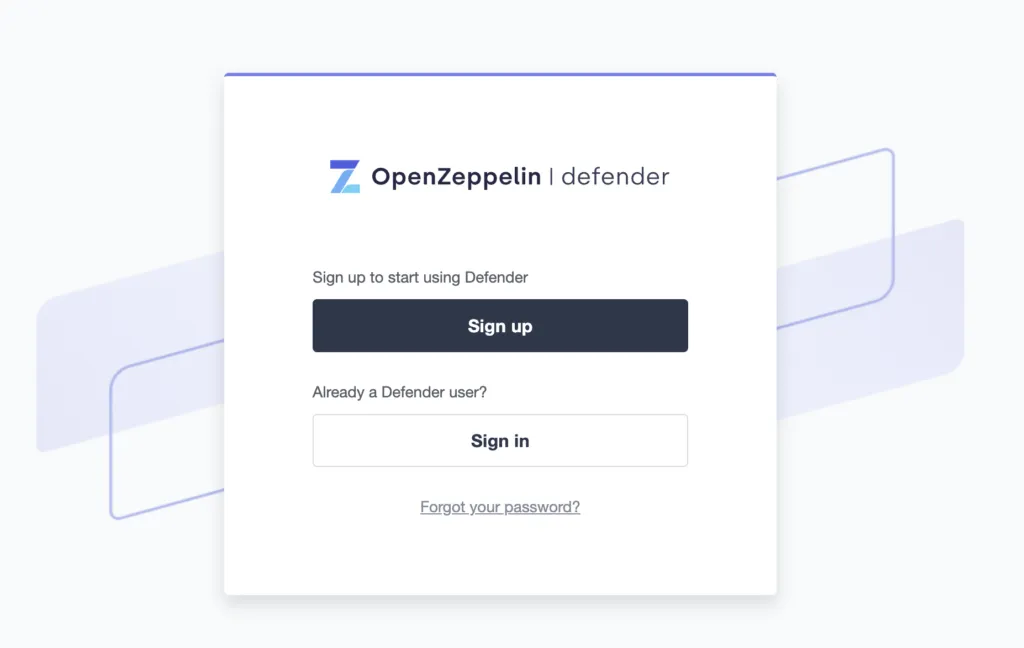
On the following page, click Sign up.
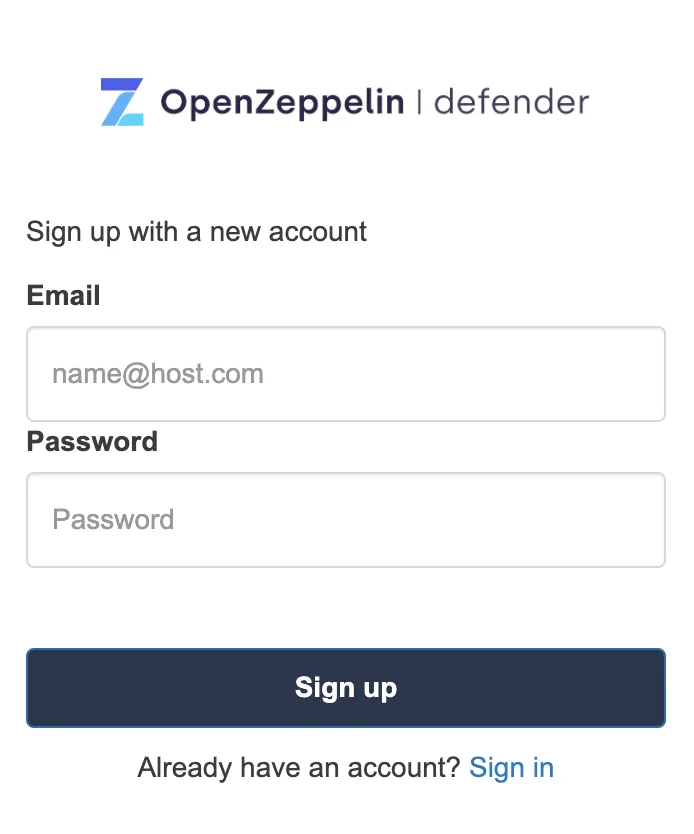
Enter your email address and password, then click Sign up.
Open the confirmation email and click Verify Email.
The following screen indicates that your registration was successful.
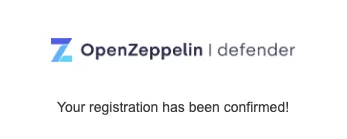
Return to the earlier page and select Sign in.
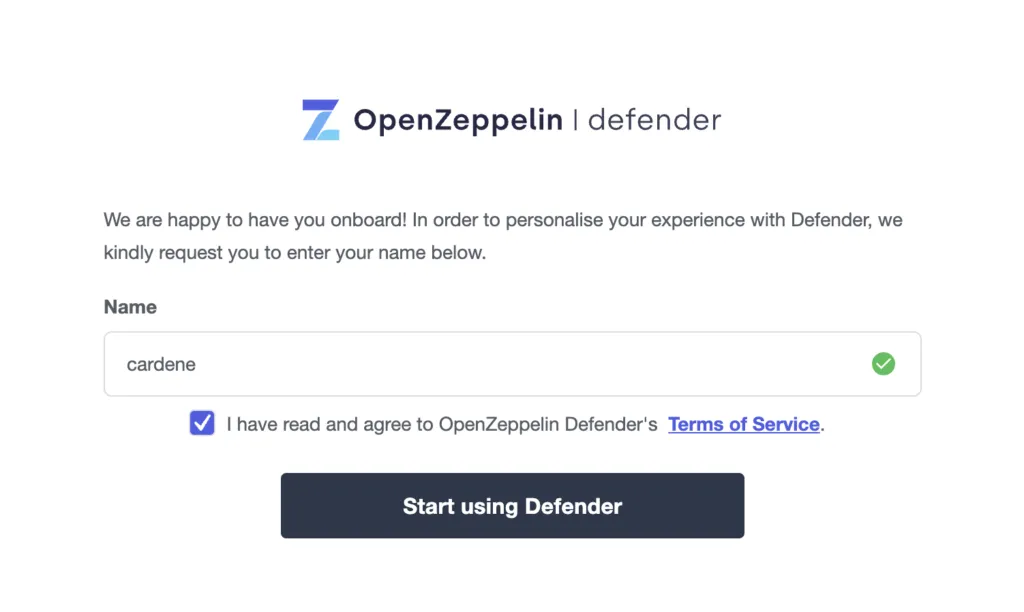
Enter your name, check the box to agree to the terms of service, and click Start using Defender.
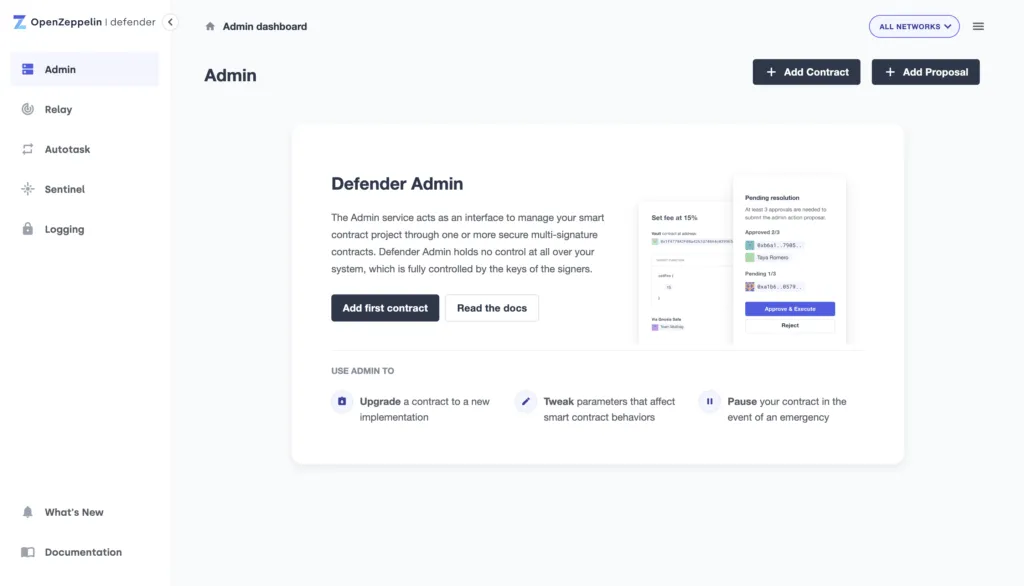
Registration is complete when you see a screen like the following.
Set Up Slack
Now set up Slack and prepare it to receive notifications.

You can download the Slack app from the link above.

Follow the installation instructions at the link above.
You need a workspace, so create one by following those instructions.
Create a new channel in the workspace you just set up by following the instructions above.
The next step is to obtain a webhook URL.
Open the link above.
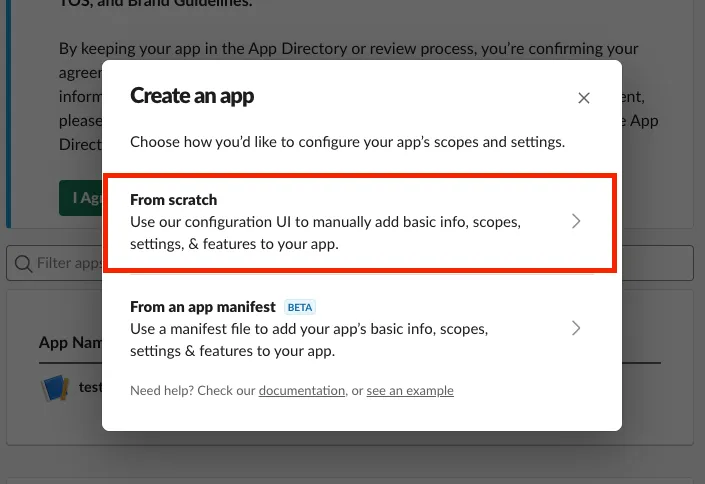
On the following screen, click Create an app.
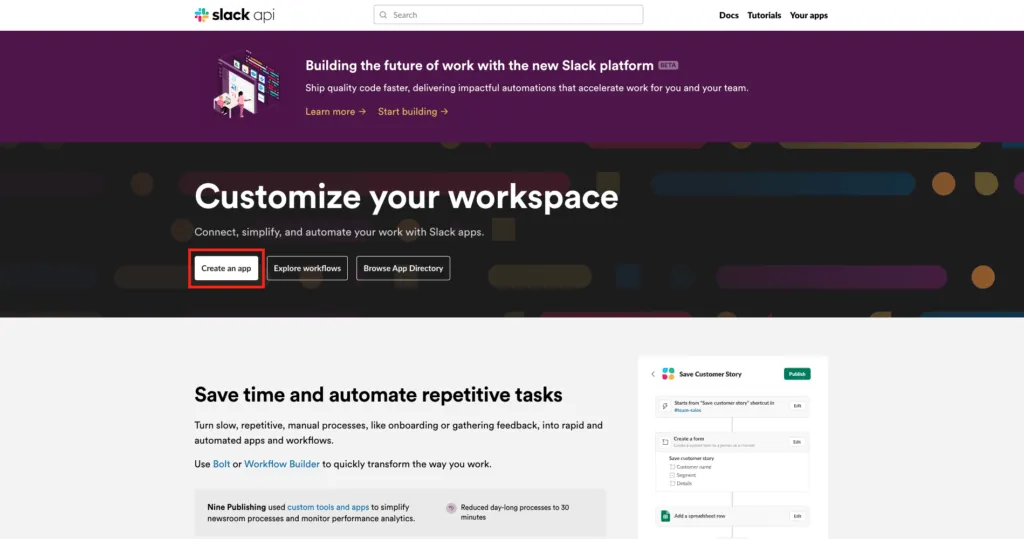
A dialog will appear. Select From scratch.
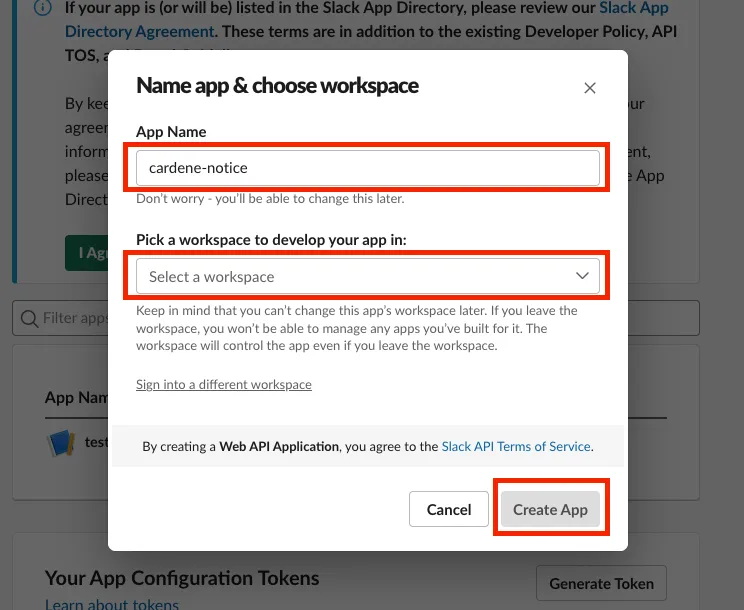
In the next dialog, enter an app name, select the workspace you created earlier, and click Create App.
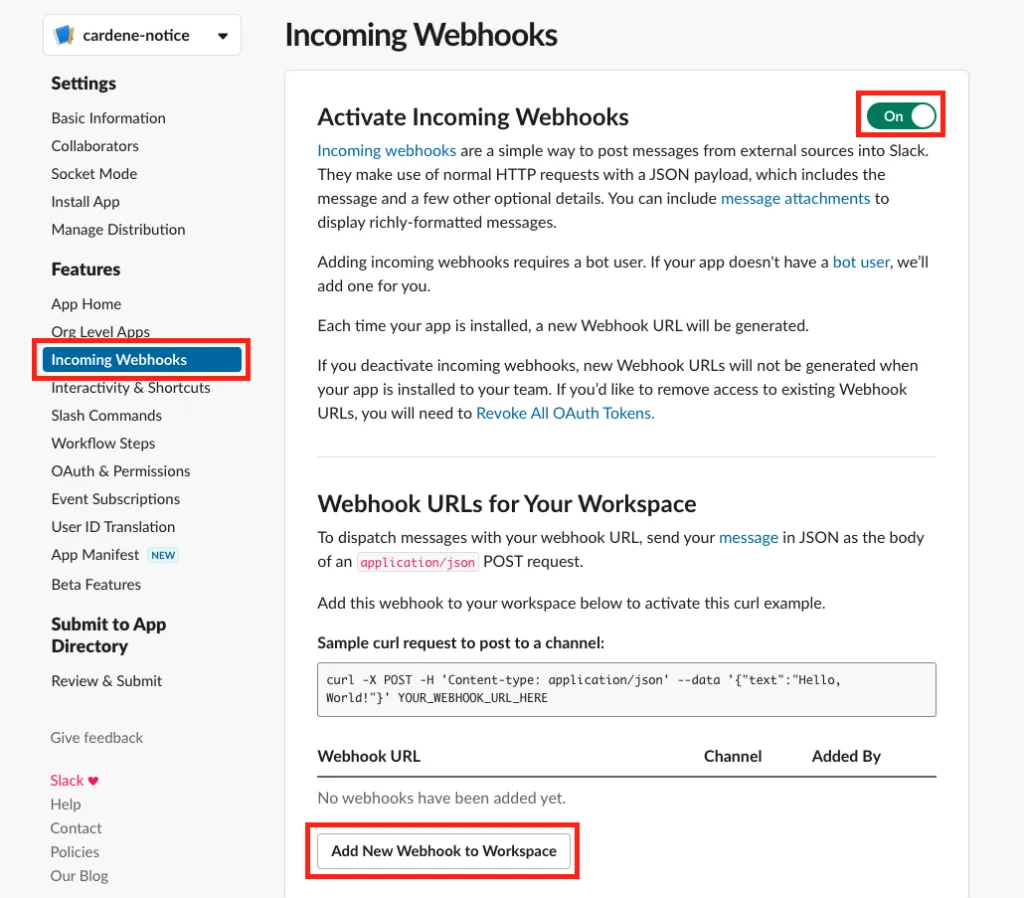
Select Incoming Webhooks from the left-hand menu to open the following page.
Switch Activate Incoming Webhooks to On.
Then click Add New Webhook to Workspace.
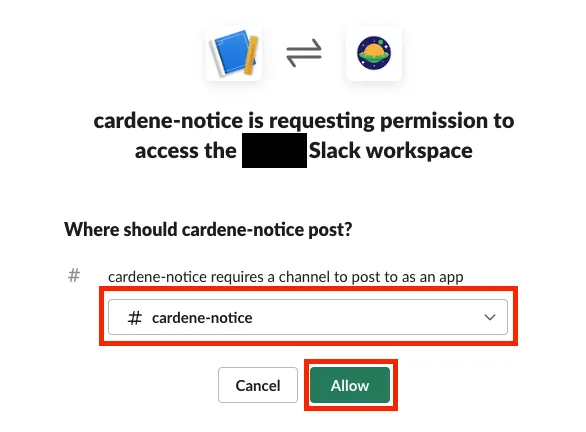
Choose the channel where you want to receive alerts and click Allow.
You will return to the previous screen, where a new webhook URL appears near the bottom.
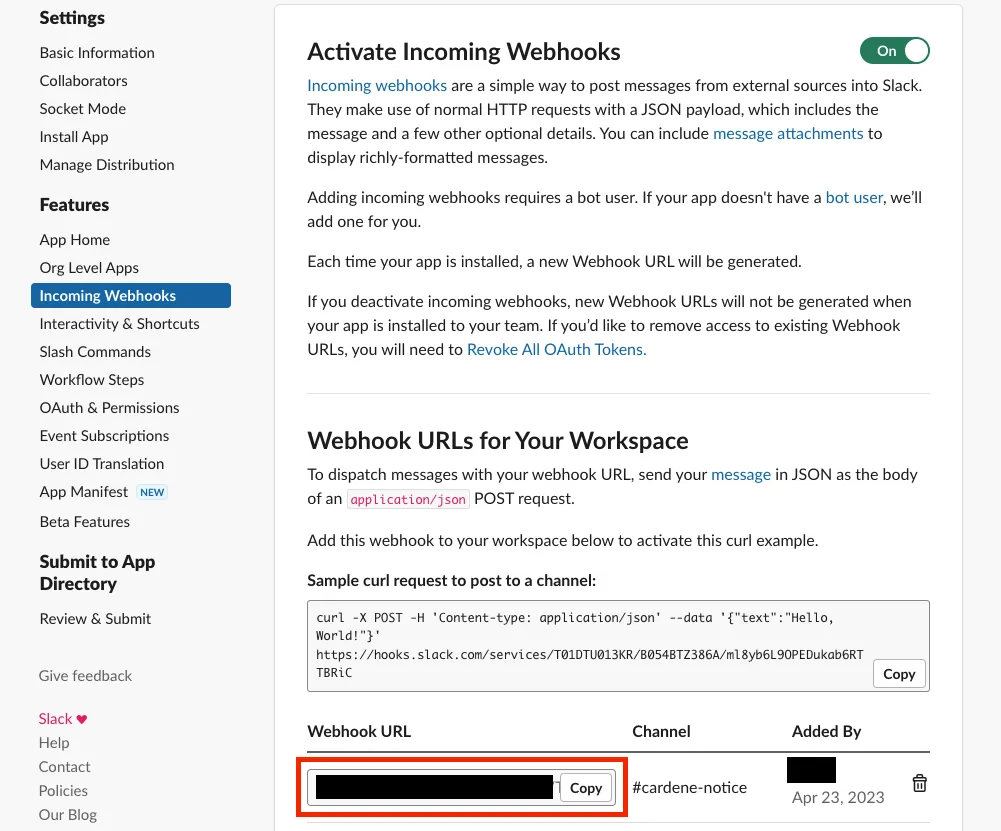
Save the URL securely for later use.
That completes the required Slack configuration.
Create the Contract

Next, create the smart contract.
We will use an ERC-20 token contract, monitor its functions, and notify Slack when they are called.
First, obtain a local copy of the code in the following GitHub repository.
Once you have a local copy, run the following terminal commands as described in the README.md.
$ npm install
$ npx hardhat compile
Then run the following command to deploy the contract to the Goerli testnet.
$ npm run deploy:goerliA successful deployment produces output like the following.
> erc20@1.0.0 deploy:goerli
> npx hardhat run scripts/deploy.ts --network goerli

ERC20 contract deploy address 0xAF66Bbf36f7ec78eB37984Df03562accDa58602b
Deploy completed
0xAF66Bbf36f7ec78eB37984Df03562accDa58602b is the contract address.
Open Goerli Etherscan and search for the contract address. If the contract appears, deployment was successful.
This completes the basic contract setup.
The next section covers the main task: configuring OpenZeppelin Defender.
Configure Notifications in OpenZeppelin Defender

In this section, configure OpenZeppelin Defender to monitor the contract and send Slack alerts when specified methods are called.
First, open the following page.
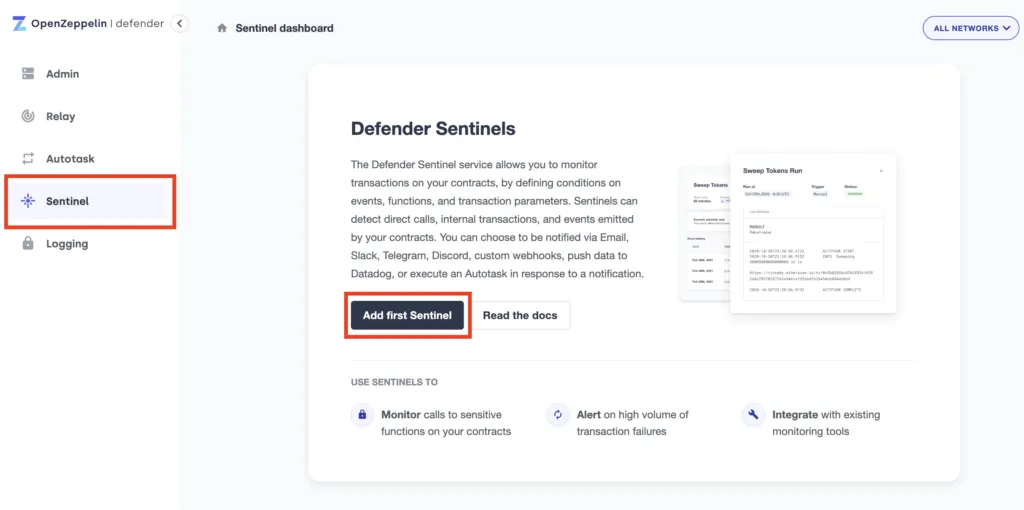
Select Sentinel from the side menu and click Add first Sentinel.
On the following page, select Connect for Sentinel Type and enter a name of your choice in Sentinel name.
Select Goerli for Network.
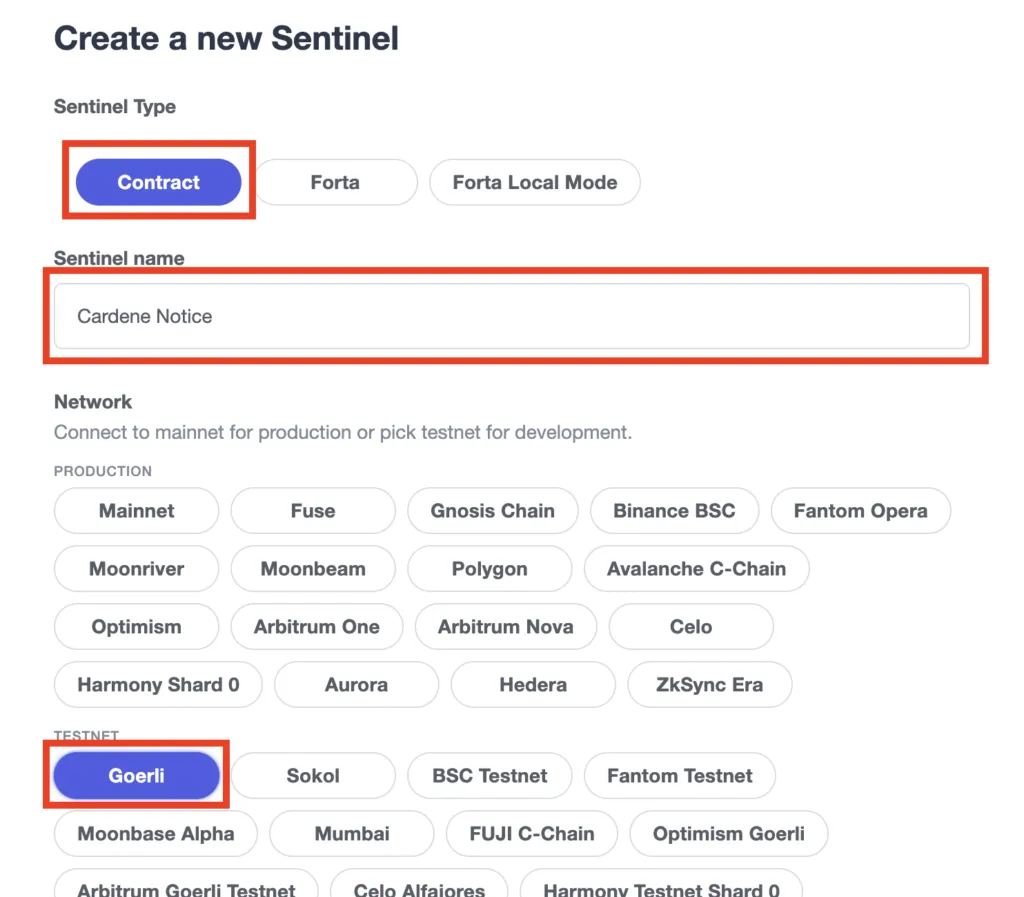
Scroll down to the Addresses field and enter the address of the contract you deployed earlier.
After you enter the address, the following ABI field appears.
Paste the value of the "abi" field from the contract artifact at ERC20/artifacts/contracts/Token.sol/Token.json.
Alternatively, copy the ABI directly from the following GitHub file.
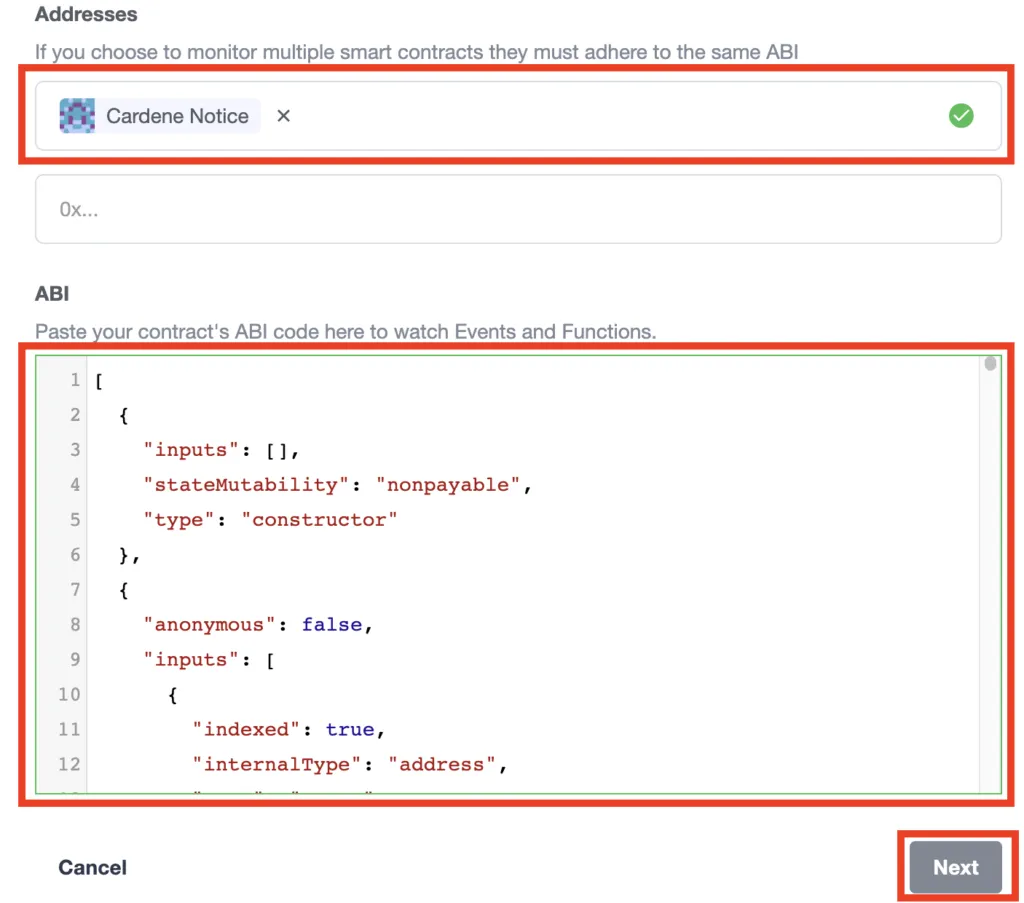
After entering the required information, click Next.
Additional fields appear below.
Under Transaction properties, you can specify conditions for the transactions to detect.
The following configuration detects only failed transactions.
To detect only successful transactions, enter status=='success' instead.
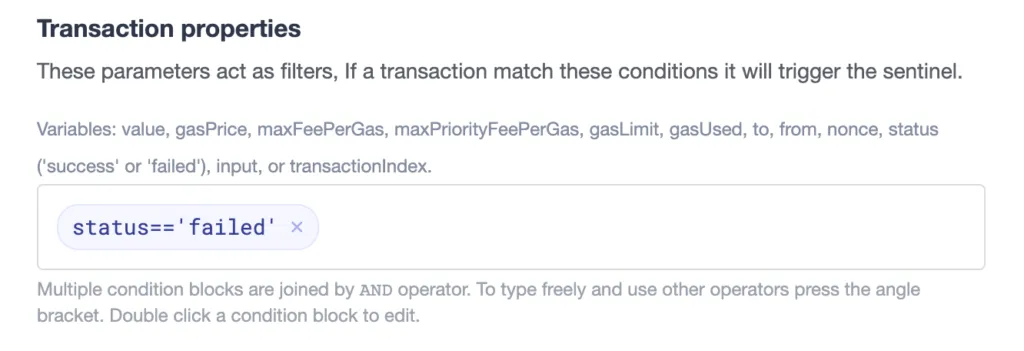
Under Contract conditions, below Transaction properties, select Paused, RoleGranted, RoleRevoked, and Unpaused in the Event section.
In the FUNCTIONS section of Contract conditions, select burn, grantRole, pause, revokeRole, and unpause.
Once these options are selected, click Next.
On the following screen, click Create new notification.
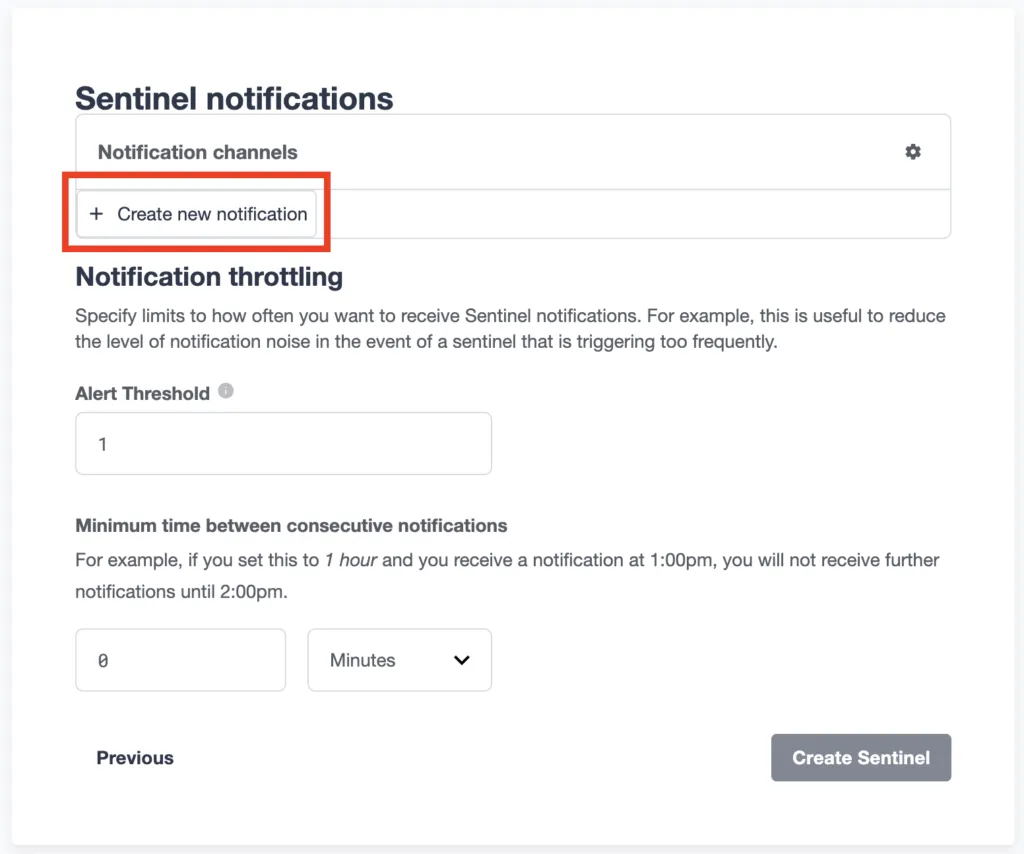
From the menu that appears, select Slack Webhook.
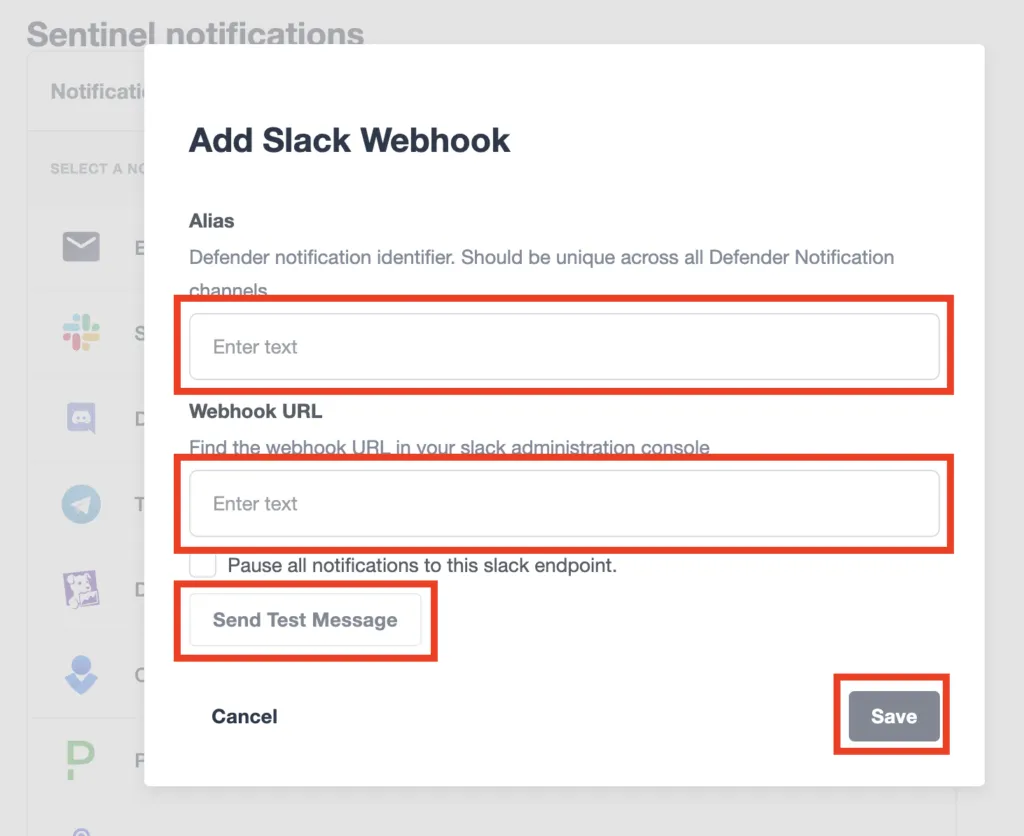
The following dialog will appear.
Enter a descriptive identifier in Alias, then paste the Slack webhook URL you created earlier into Webhook URL.
After completing both fields, click Send Test Message.
A test message should arrive in the target Slack channel. If it does, the connection is working.
Finally, click Save.
On the previous screen, select the newly created channel under Notification channels and click Create Sentinel.
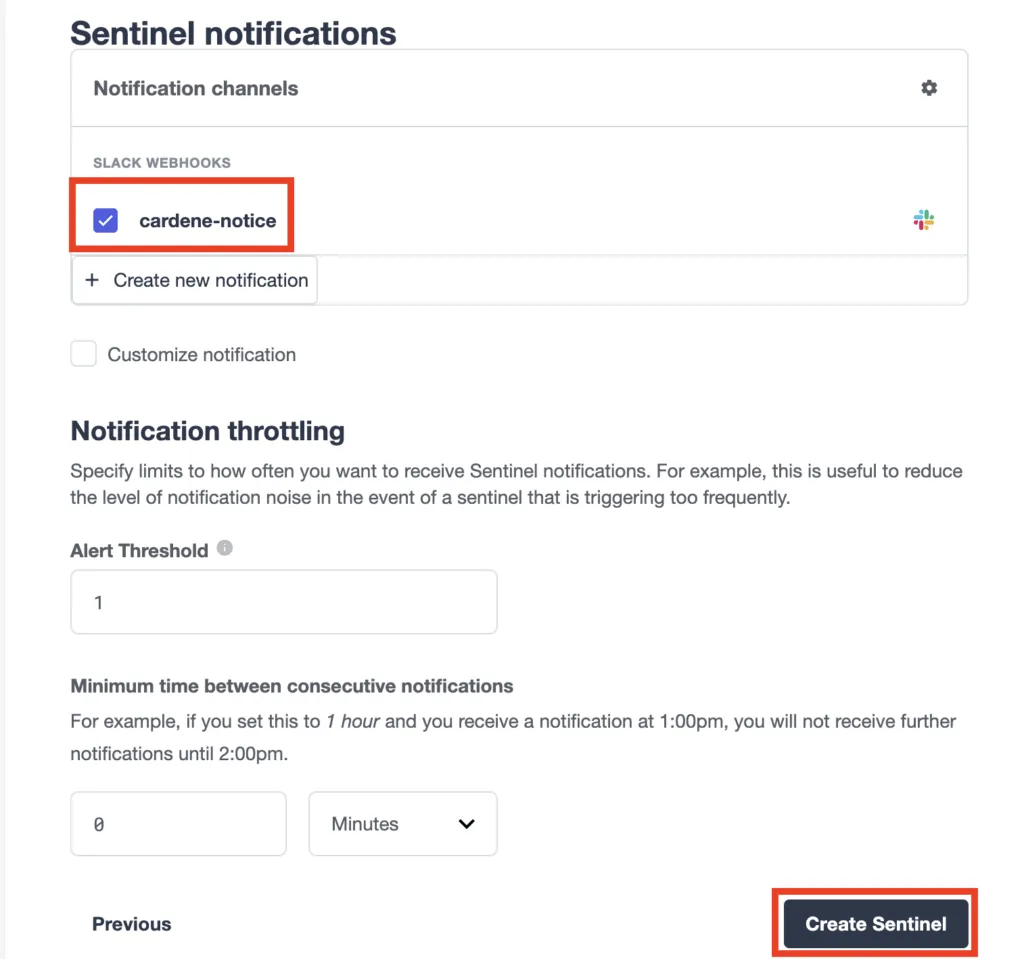
This completes the OpenZeppelin Defender setup.
Next, test whether the notifications actually arrive.
Test Slack Notifications

The final step is to test the Slack integration.
Return to the terminal and run the following command.
$ npm run deploy:slackThis command runs the script at ERC20/scripts/slack.ts. Read that file to see exactly what it does.
After a short delay, logs should appear in the terminal and a message like the following should arrive in the Slack channel.
Defender Sentinel ERC20 Token Slack Triggered
Network
goerli
Block Hash
0xd3942fa9218735a1e3a78d3b11402e9e5683f89bc84dbfc0d47e24d21f7717b3
Transaction Hash
0x32ea252ae70d850306e22e18f3fa3730e11eca95e1b213bd87d5d6932fe214e6
Explorer Link
https://goerli.etherscan.io/tx/0x32ea252ae70d850306e22e18f3fa3730e11eca95e1b213bd87d5d6932fe214e6
**Match Reason 1**
Type: Event
Matched Address: 0xb7d1049ff45dd4b8144de5c795adff1b4e7c6e9e
Signature: Paused(address)
Params:
account: 0xC255C784Ac559339A99F91a22E2063ff66B83354
**Match Reason 2**
Type: Function
Matched Address: 0xb7d1049ff45dd4b8144de5c795adff1b4e7c6e9e
Signature: pause()
Failed transactions also generate notifications like the following.
Defender Sentinel ERC20 Token Slack Triggered
Network
goerli
Block Hash
0xd5b678467fb0cd613900dde2fdbe1489c30a4fa876958e622906ec0ac194dc37
Transaction Hash
0xc8ba3b0721bc1723170bc25aefe0ebc0376308891da744049a6c89caaa4be444
Explorer Link
https://goerli.etherscan.io/tx/0xc8ba3b0721bc1723170bc25aefe0ebc0376308891da744049a6c89caaa4be444
**Match Reason**
Type: Function
Matched Address: 0xb7d1049ff45dd4b8144de5c795adff1b4e7c6e9e
Signature: pause()
The alert includes an Etherscan link and the transaction hash, making it easy to inspect transaction details.
Conclusion

We have walked through the implementation of Slack notifications for specific smart contract function calls.
How did the walkthrough go?
OpenZeppelin Defender offered other features as well, so experiment with the available functionality when adapting the workflow.
If you have questions, feel free to send me a direct message on Twitter or another channel.
I generally write about Python and blockchain.
On Twitter, I also share visual explanations of technical topics.
