Introduction
Hi, I'm cardene, a software engineer and technical writer focused on blockchain and AI.
I've also authored Japanese technical books on specification-driven development with LLMs and decentralized application (DApp) development.
I also build and publish a variety of tools, libraries, and open-source projects.
When adding quiet hours to a notification feature, specifying only a start time and an end time is not enough to guide implementation. You also need to decide how to handle intervals that cross midnight, the user's time zone, boundary times, and urgent notifications.
Kiro Specs is a Kiro feature that separates feature requirements, technical design, and implementation work into three Markdown files, allowing you to review their contents as you proceed toward implementation. An example of adding notification quiet hours illustrates the role of the three files, the Feature Spec workflow, its differences from Quick Spec, and how to determine completion after implementation.
What Is Kiro Specs?
Kiro Specs turns feature requirements and technical designs expressed in natural language into specifications that can guide implementation.
For each feature, it creates requirements.md for requirements, design.md for technical design, and tasks.md for the task list.
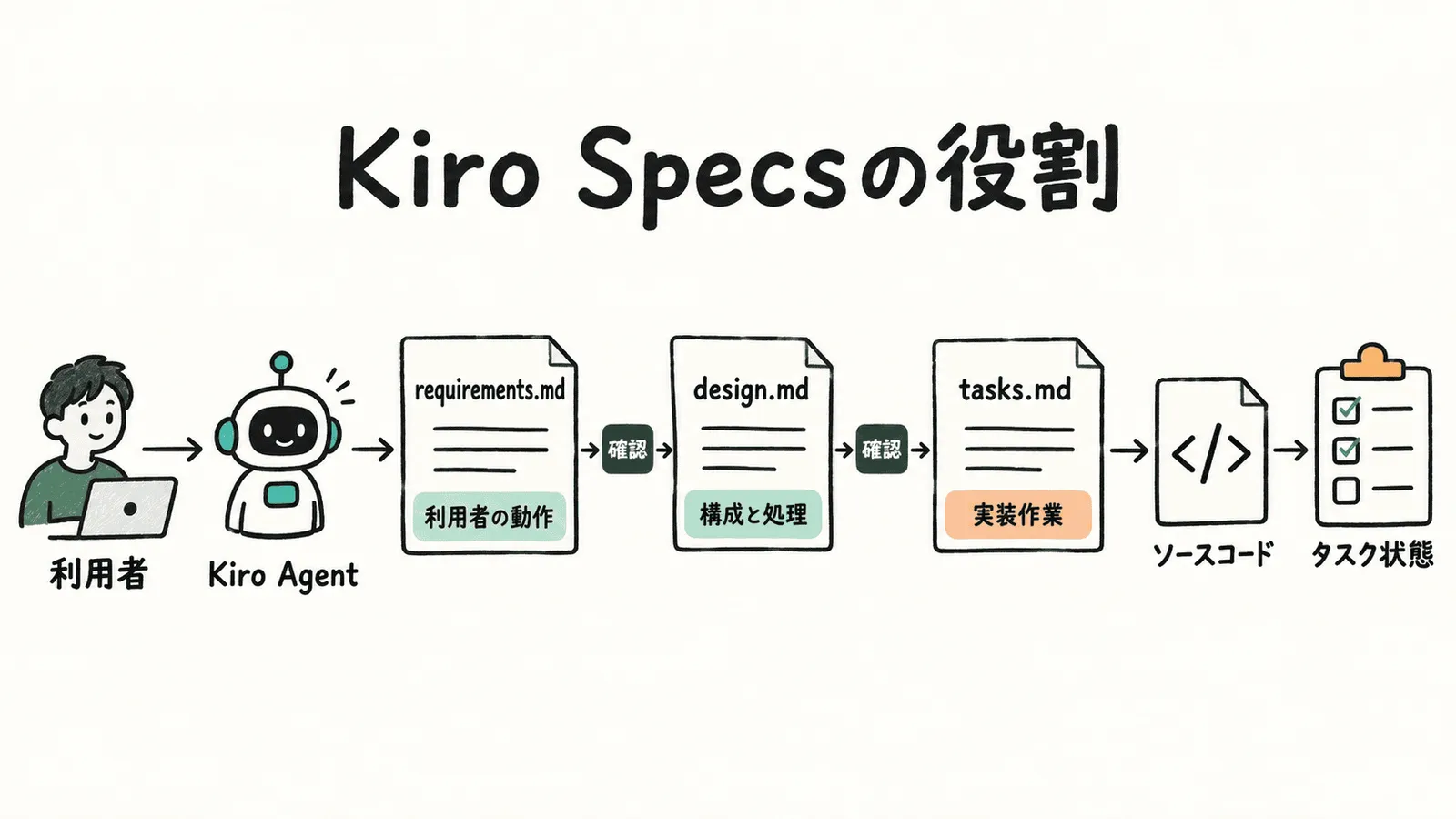
The original diagrams and illustrative text blocks retain Japanese labels and wording.
In a Requirements-First Feature Spec, you review requirements before moving to design, then review the design before moving to tasks and implementation. In Design-First, you review the technical design, the requirements derived from that design, and the task list in that order. Rather than generating all the code at once, both approaches let you review different artifacts according to the decisions being made.
Kiro Specs is available in the IDE, CLI, and Web environments. However, supporting features differ across these environments. For example, Correctness, which generates property-based tests from requirements, is an IDE feature.
As of October 17, 2026, the official documentation is inconsistent regarding Analyze Requirements. The Specs feature availability table indicates that Web is unsupported, whereas the detailed Analyze Requirements page includes instructions for Web. This article therefore describes Analyze Requirements only for the IDE and CLI.
The Three Specification Files
The three files do not repeat the same content at different levels of detail. Each answers a different question.
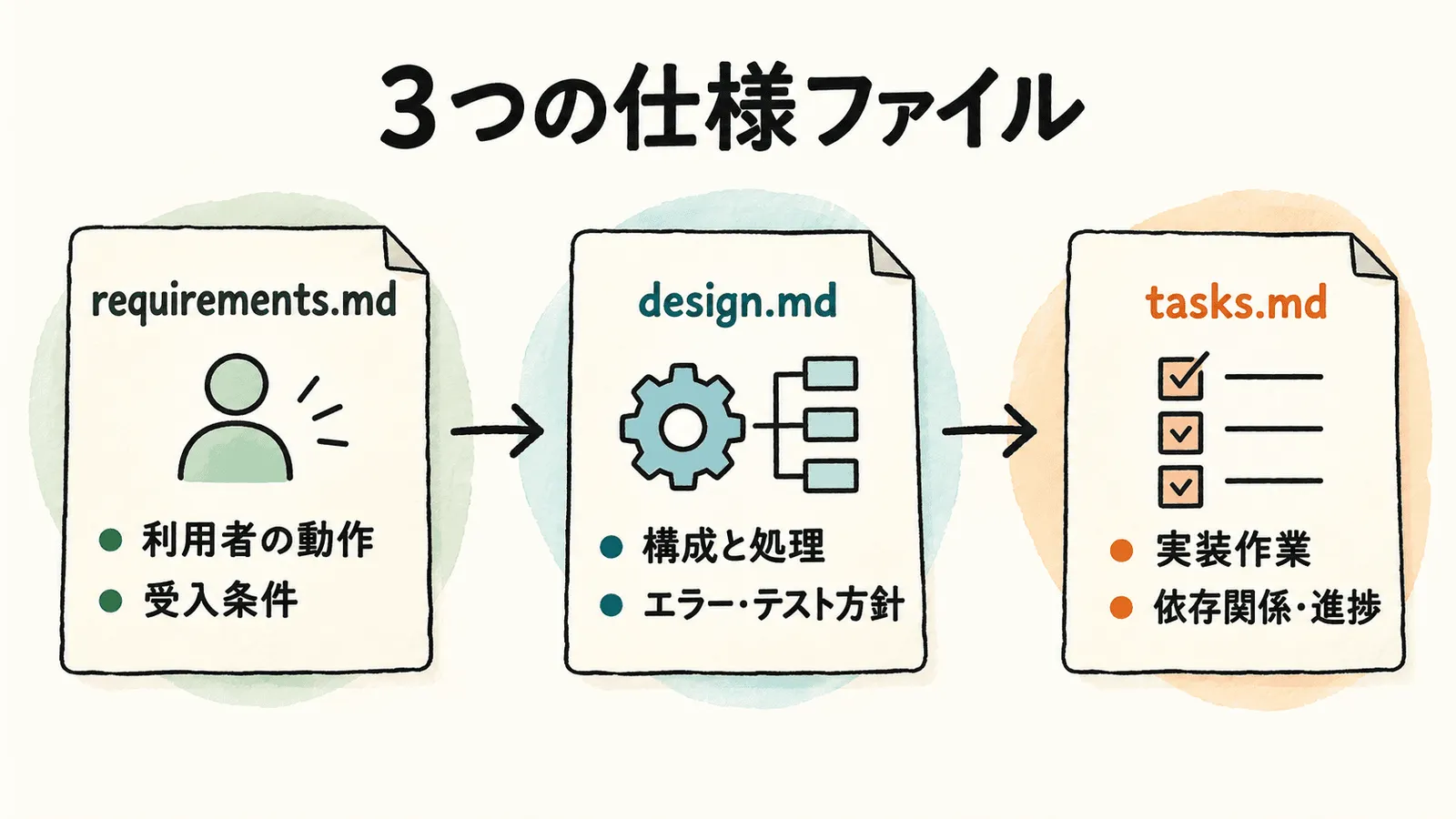
| File | Question answered | Main contents |
|---|---|---|
requirements.md |
What can users do, and what results do they receive? | User objectives, acceptance criteria, exceptions, input errors |
design.md |
What architecture and processing will achieve those results? | Components, data, interfaces, error handling, testing strategy |
tasks.md |
What should be implemented, and in what order? | Work items, expected results, dependencies, required or optional status, progress |
If the user-facing behavior is wrong, return to requirements.md.
If the data structure or processing approach is problematic, correct design.md.
If the implementation order or scope is insufficient, update tasks.md.
This separation distinguishes adding requirements from changing technical decisions. For example, adding an urgent-notification exception to quiet hours changes the requirements. Changing the library used for time zone processing, on the other hand, changes the design.
Completion status in tasks.md indicates work progress.
It does not automatically guarantee that requirement IDs are linked to executed test results, so the example later in this article explicitly records corresponding requirements and verification commands for each task.
Division of Responsibilities with Steering
An individual Feature Spec records only the feature being added.
Information reused across the entire project is stored separately in .kiro/steering/.
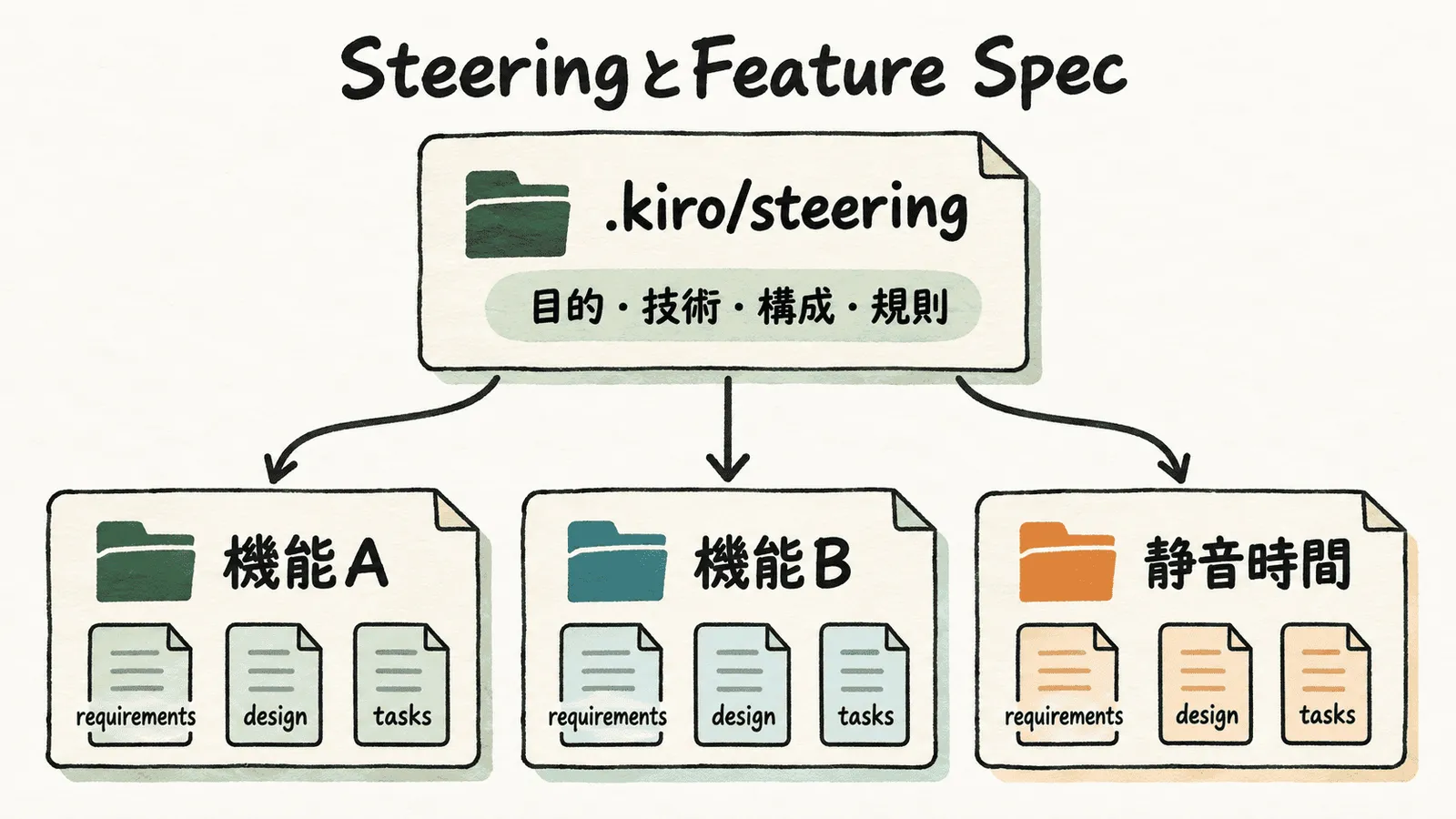
Steering stores the product's purpose, technology choices, directory structure, and naming conventions. Multiple Feature Specs reference the same Steering documents, so there is no need to rewrite shared rules for each feature.
For notification quiet hours, the requirement to defer notifications from 11 p.m. until 7 a.m. the next day belongs in the individual Spec.
The use of TypeScript, the location of notification processing under src/notifications/, and test file naming conventions belong in Steering.
Separating shared information from individual requirements reduces the changes needed in each Spec when the project structure changes. Conversely, placing a constraint specific to the current feature in Steering passes unnecessary assumptions to unrelated Specs. Choose where to store information according to the scope in which it will be reused.
File Structure
Kiro stores Steering and Specs under .kiro/ at the project root.
If you create notification quiet hours under the name quiet-hours, the structure looks like this.
project/
├── .kiro/
│   ├── steering/
│   │   ├── product.md
│   │   ├── tech.md
│   │   └── structure.md
│   └── specs/
│       └── quiet-hours/
│           ├── requirements.md
│           ├── design.md
│           └── tasks.md
├── src/
│   └── notifications/
└── tests/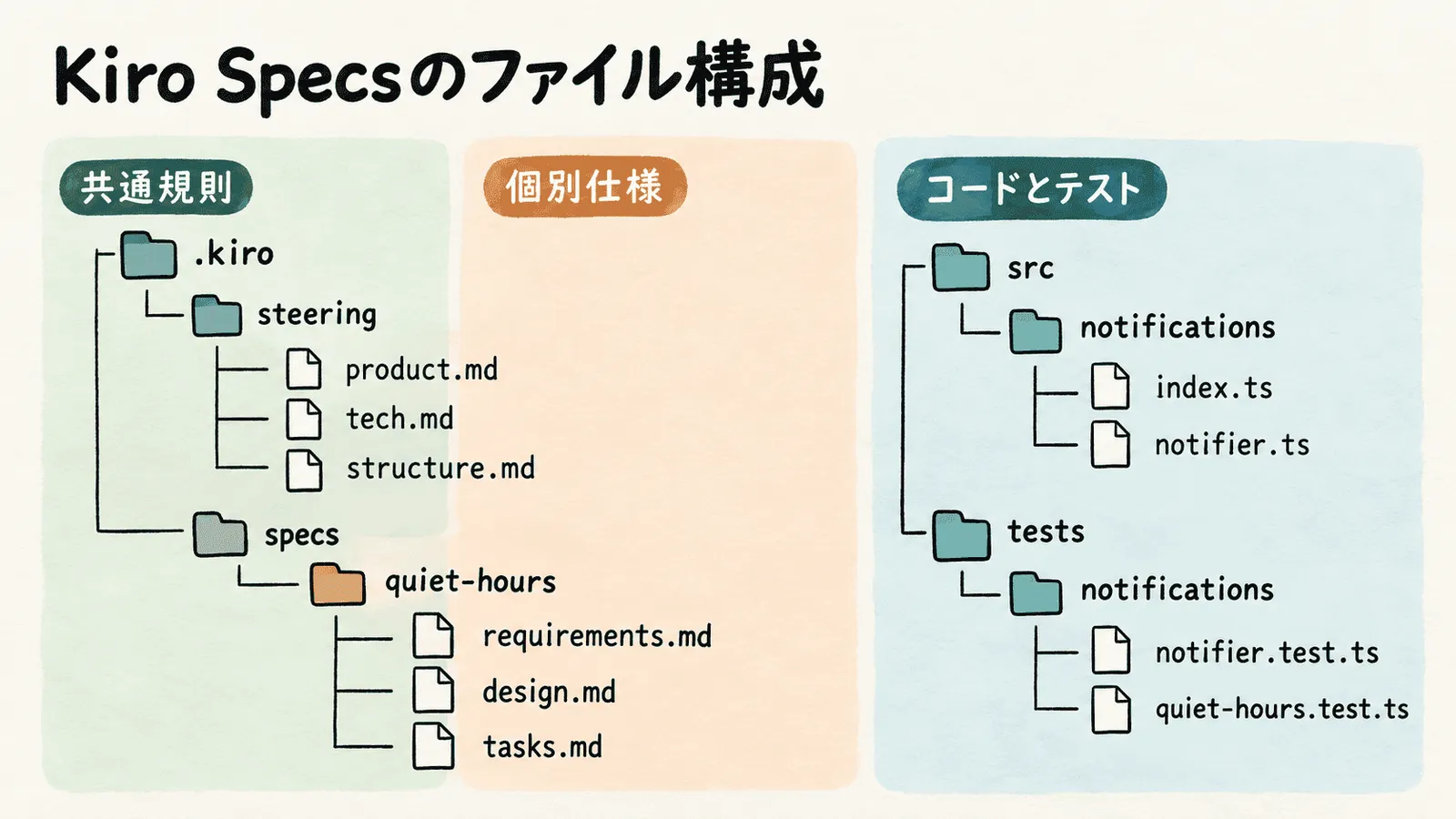
.kiro/specs/quiet-hours/ corresponds to one feature.
When adding another feature, create a separate directory under .kiro/specs/.
Keeping specification files in the same repository as the source code lets you determine from the history which specification was used for a code change.
The order of the three files is more than a naming convention.
requirements.md defines user-visible results, design.md defines how to achieve those results, and tasks.md divides the design into implementable work.
When requirements change, update the design and task list to match the new requirements.
Basic Workflow
Use Requirements-First for features whose user-visible behavior is defined first. The standard workflow is as follows.
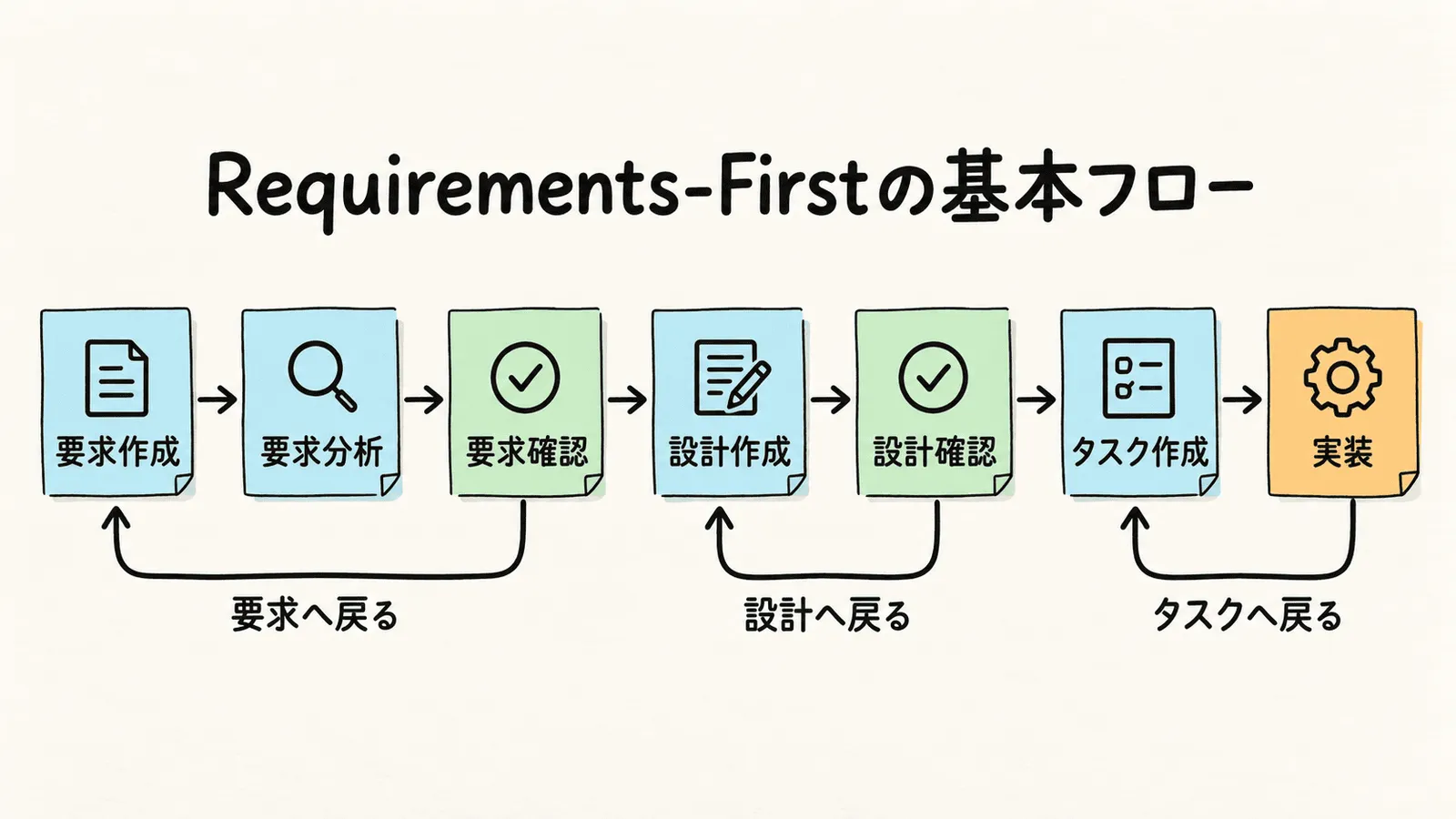
- Create a Feature Spec
Define user behavior and acceptance criteria in
requirements.md, and confirm the scope of the requirements. - Analyze the requirements Run Analyze Requirements in the IDE or CLI to identify contradictions, ambiguities, and undefined exceptions.
- Create the design
Create
design.mdfrom the reviewed requirements and codebase, and review the architecture, data, error handling, and testing strategy. - Create the task list
Create
tasks.mdfrom the requirements and design, and review expected results, dependencies, and the distinction between required and optional tasks. - Check execution permissions Check the execution environment's permissions before running tasks individually or in a batch.
- Verify implementation results Separately check the progress reported by Kiro, the actual code diff, and the project's test results.
- Reflect changes to requirements When requirements change, update the design and task list rather than continuing implementation with obsolete task progress.
In the CLI, you can use /spec new, /spec view, /spec analyze_requirements, and /spec run from a local interactive session.
The /spec command is unavailable in cloud sessions.
Requirements-First
Requirements-First defines user-visible behavior before implementation. It is useful for features such as new screens, APIs, and business rules, where the expected outcomes should guide the implementation approach.
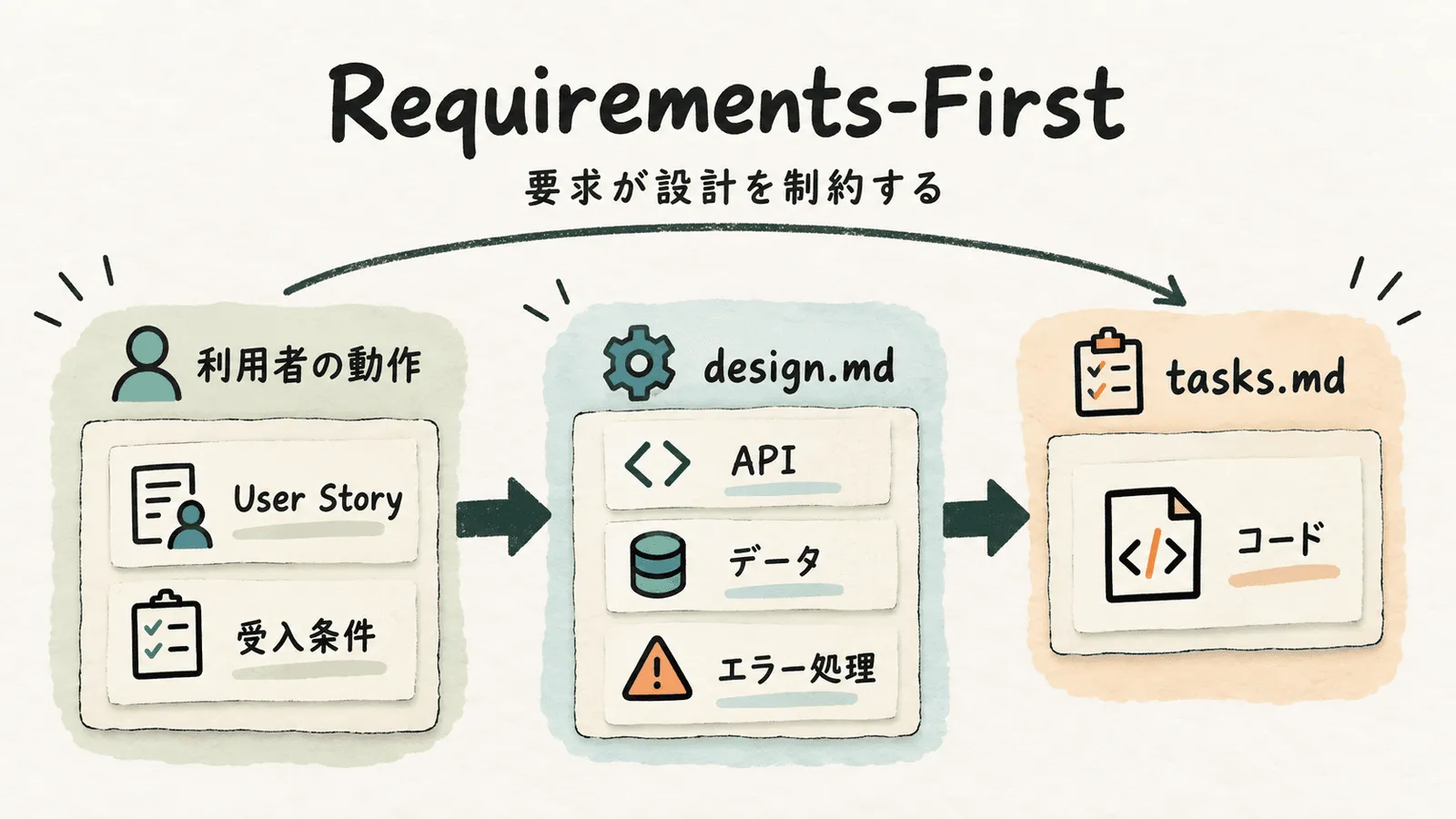
First, record user objectives and acceptance criteria in requirements.md.
Kiro uses the EARS format to organize conditions and expected behavior so they can be read separately.
After reviewing the requirements, Kiro examines the existing code and requirements and summarizes the necessary components, data, and interfaces in design.md.
Once the design has been reviewed, tasks.md is created.
Each task specifies what to implement and the expected result, and tasks are ordered according to dependencies.
This sequence lets you choose a design that satisfies reviewed requirements rather than adapting requirements to whichever implementation is easiest.
Analyze Requirements checks for contradictions between requirements, ambiguous expressions, conflicting constraints, undefined assumptions, and missing exceptions before design.
Your answers to Kiro's questions are reflected in requirements.md.
Do not stop after reading the analysis results; verify that the updated requirements match your intent before proceeding to design.
Design-First
Design-First establishes technical constraints or existing design decisions first. It is suited to integration with existing systems, processing with strict performance requirements, and features for which the available infrastructure is already determined.
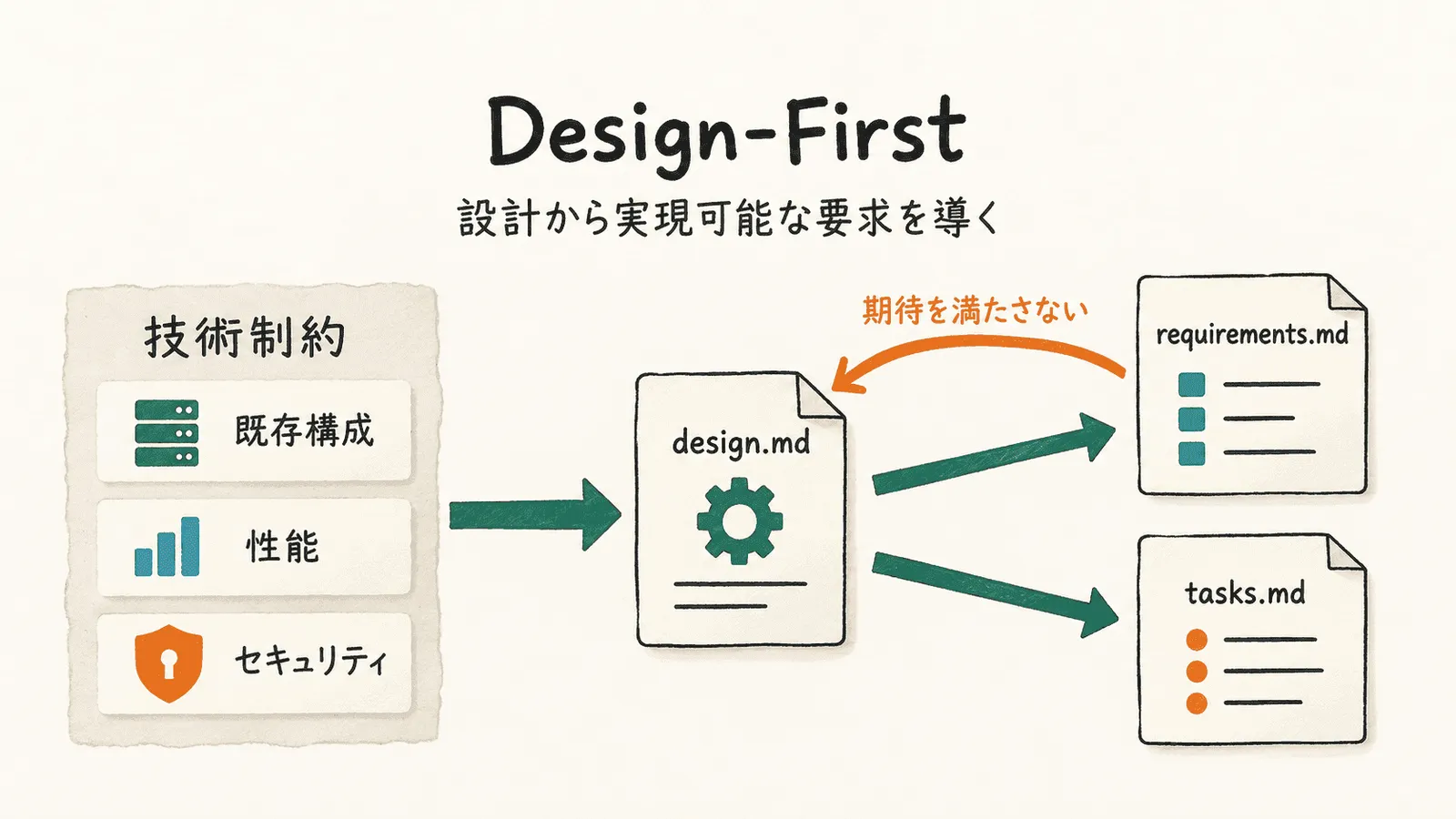
When you provide a high-level or low-level design, Kiro organizes the architecture in design.md.
After the user reviews the design, Kiro derives behavior achievable with that design in requirements.md.
Finally, it creates tasks.md to implement the design and requirements.
Design-First does not omit verification of user-visible behavior.
If the requirements derived from the design do not meet user expectations, return to design.md first rather than simply adding requirements.
Check whether the design constraints and user expectations can both be satisfied, and revise the design itself if necessary.
Requirements-First and Design-First differ in what information is reviewed first. Both ultimately use the same three files and review requirements, design, and tasks before implementation.
Task Execution and Progress
Tasks in tasks.md can be executed individually.
When the scope of changes is broad, run one task, examine its diff and test results, and then proceed to subsequent tasks.
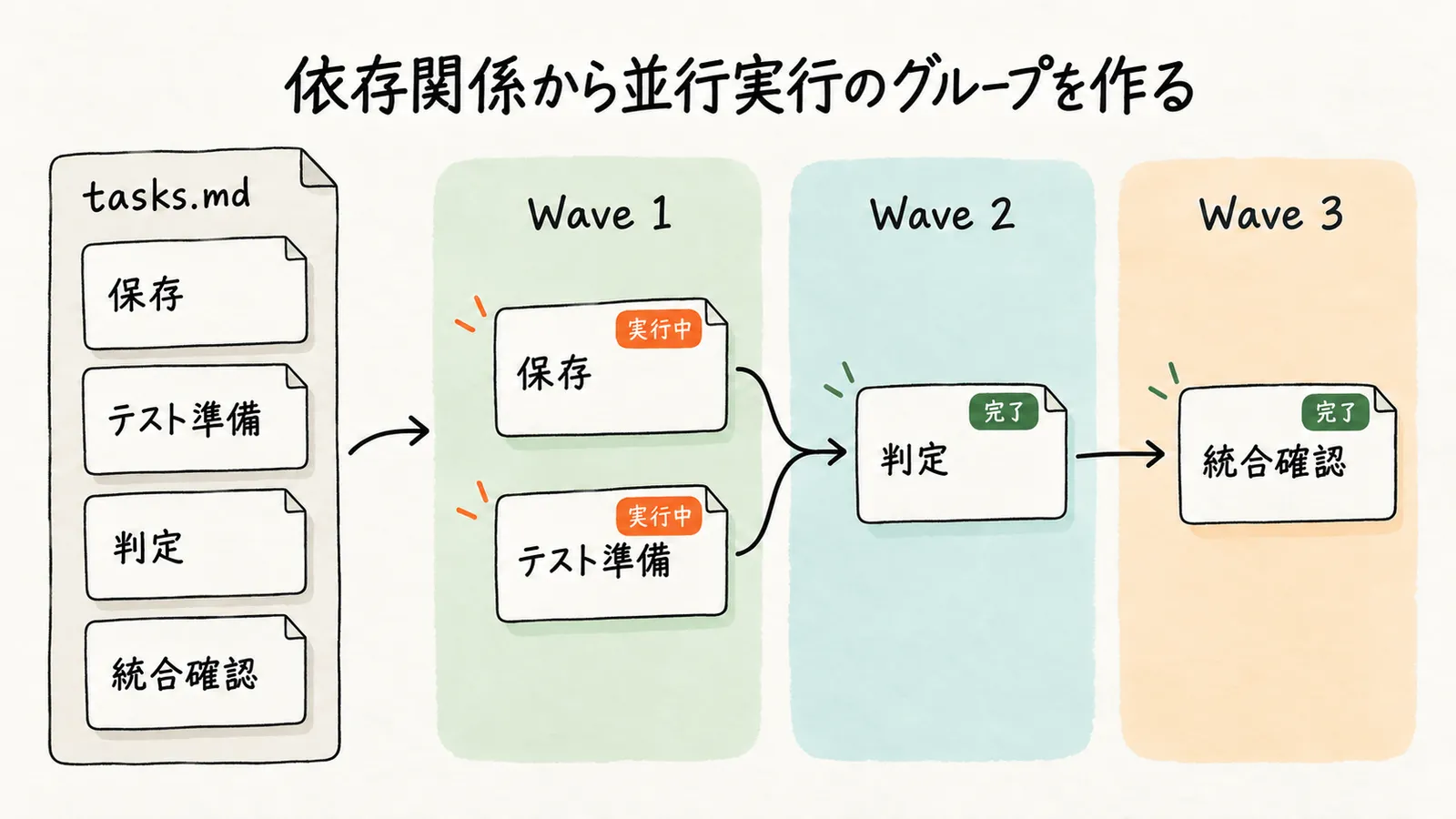
During batch execution, Kiro forms parallel execution groups from task dependencies. Tasks with no prerequisites can run concurrently in the same group, while work depending on completed tasks moves to a later group. For example, persistence and preparation of the test environment can proceed in the first group, with notification evaluation that uses both implemented in a subsequent group.
Users can see whether tasks are running or complete in Kiro. However, batch execution with ambiguous dependencies or expected results can cause multiple tasks to proceed from the same misunderstanding. Before execution, reread each task's inputs, change targets, and completion criteria.
The official documentation does not establish a uniform contract for whether a task failure stops its group, triggers an automatic retry, or determines a particular point from which execution resumes. If a failure occurs, inspect Kiro's progress, completed tasks, and resulting code changes to determine the scope of resumption.
Execution Environments and Permissions
Reviewing specification contents and authorizing Kiro Agent to operate on files or execute commands are separate decisions. Approving requirements and design does not automatically authorize every operation.
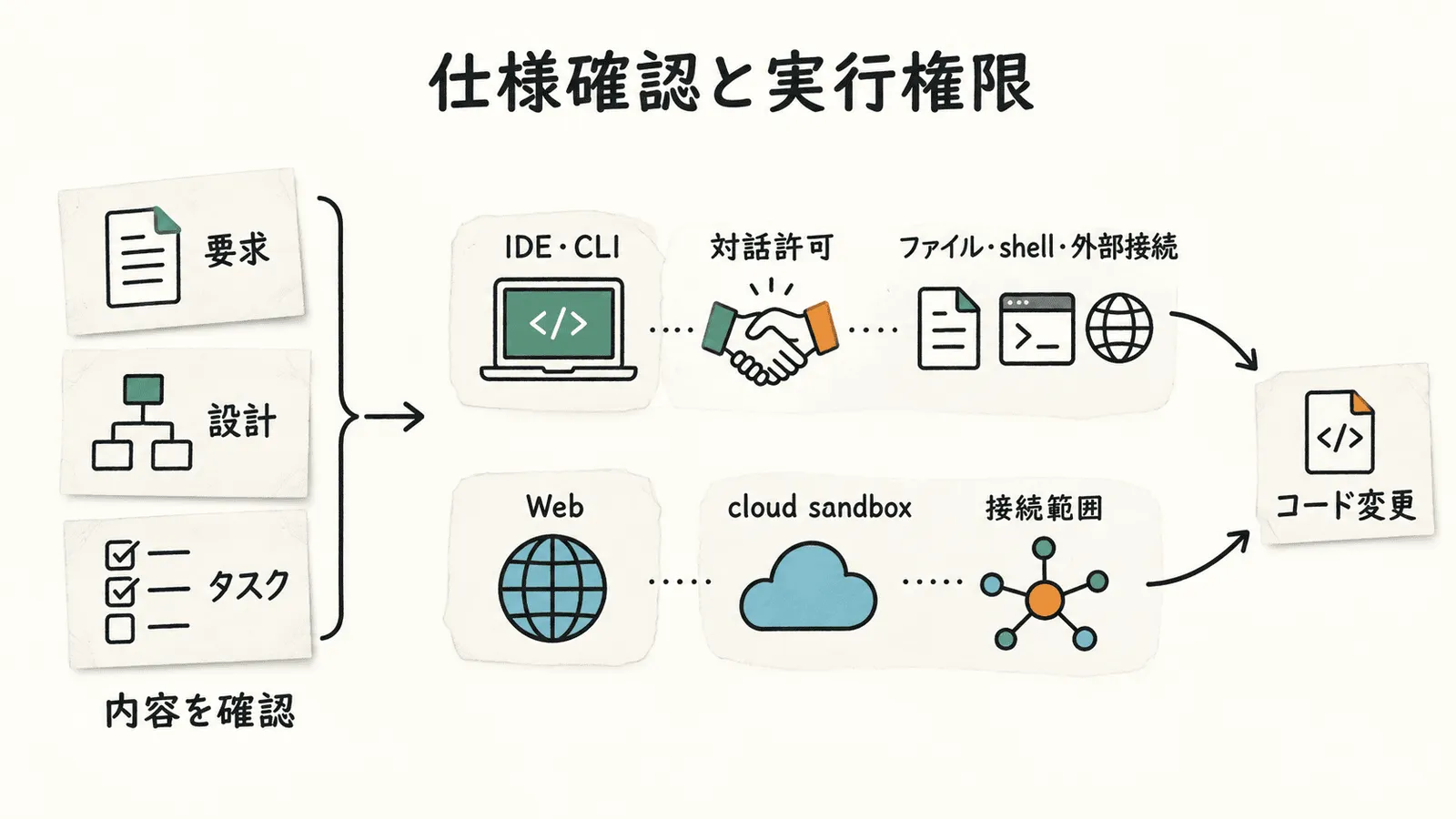
In the IDE and CLI, permission rules and interactive confirmations control file reads and writes, shell commands, and external connections. Authorize only the operations necessary for the task, restricting broad write access and unnecessary external connections.
On Web, the agent works inside an isolated cloud sandbox. External connectivity can be configured using Connections access only, Common dependencies, Open internet, or a custom allow-list. If only dependency downloads are needed, there is no need to select a setting that permits connections to arbitrary destinations.
There are two categories to review before implementation. The first is the requirements, design, and tasks recorded in the three files. The second is the environment executing the work, target repository, write scope, commands, and external connectivity. Checking these independently avoids executing a correct specification with excessive permissions.
Example: Adding Notification Quiet Hours
Here we use Requirements-First to build a feature that lets users suppress notifications from 11 p.m. to 7 a.m. the following day. The example handles the following inputs.
| Input | Meaning |
|---|---|
start |
Start time in 24-hour format |
end |
End time in 24-hour format |
timeZone |
IANA time zone name |
allowUrgent |
Whether urgent notifications are allowed during quiet hours |
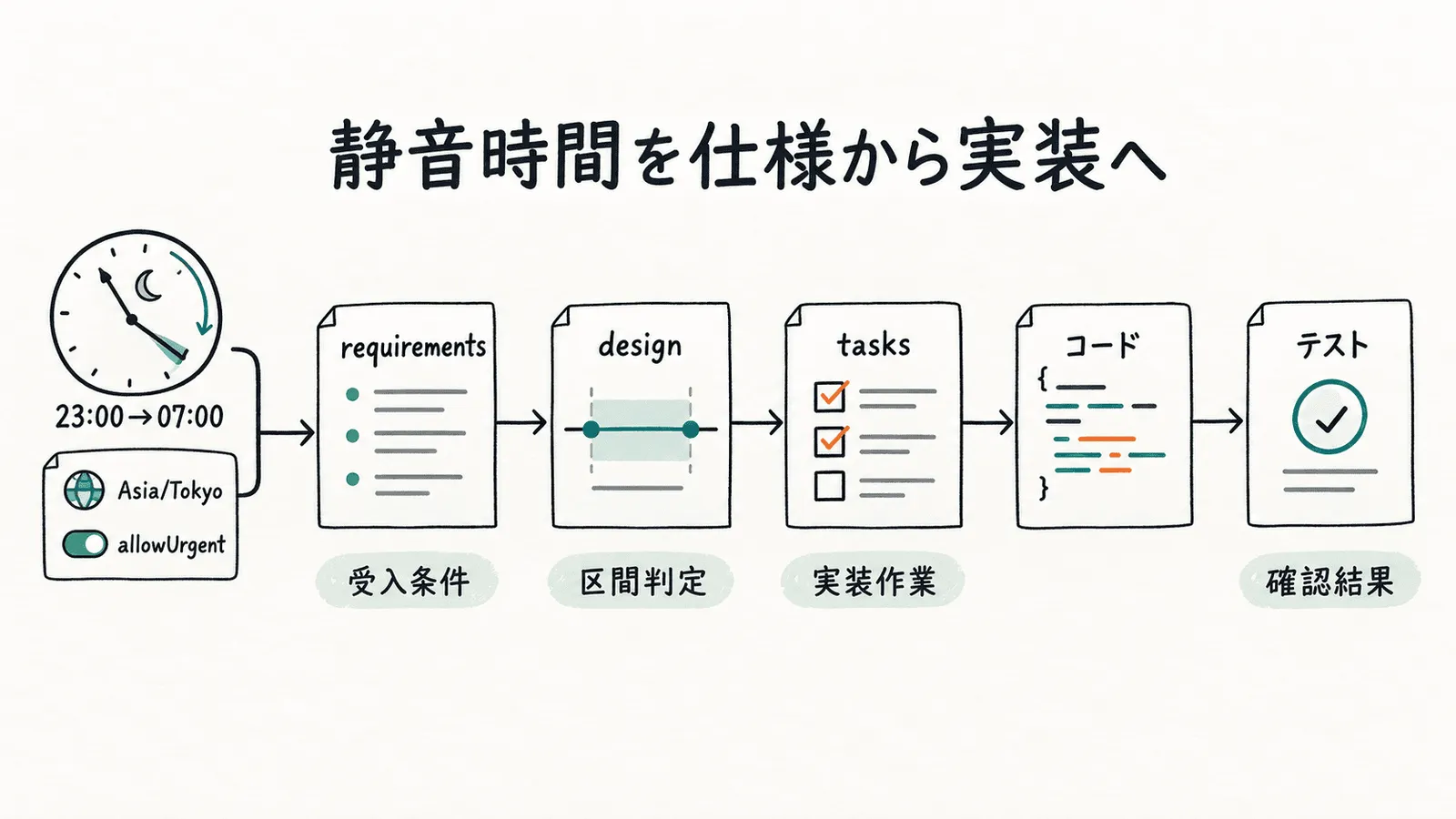
start and end use the HH:mm format and accept values from 00:00 to 23:59.
When start and end are equal, treat the input as invalid rather than as all-day quiet hours.
Do not save nonexistent IANA time zone names either.
Separating these conditions into three files lets you trace how the user's words become API behavior, a persistence format, evaluation logic, and tests.
Dividing Quiet Hours into Three Files
Make the decisions progressively more concrete, in the order of requirements, design, and task list. If conditions or technical decisions change during implementation, return to the relevant file and update downstream contents.
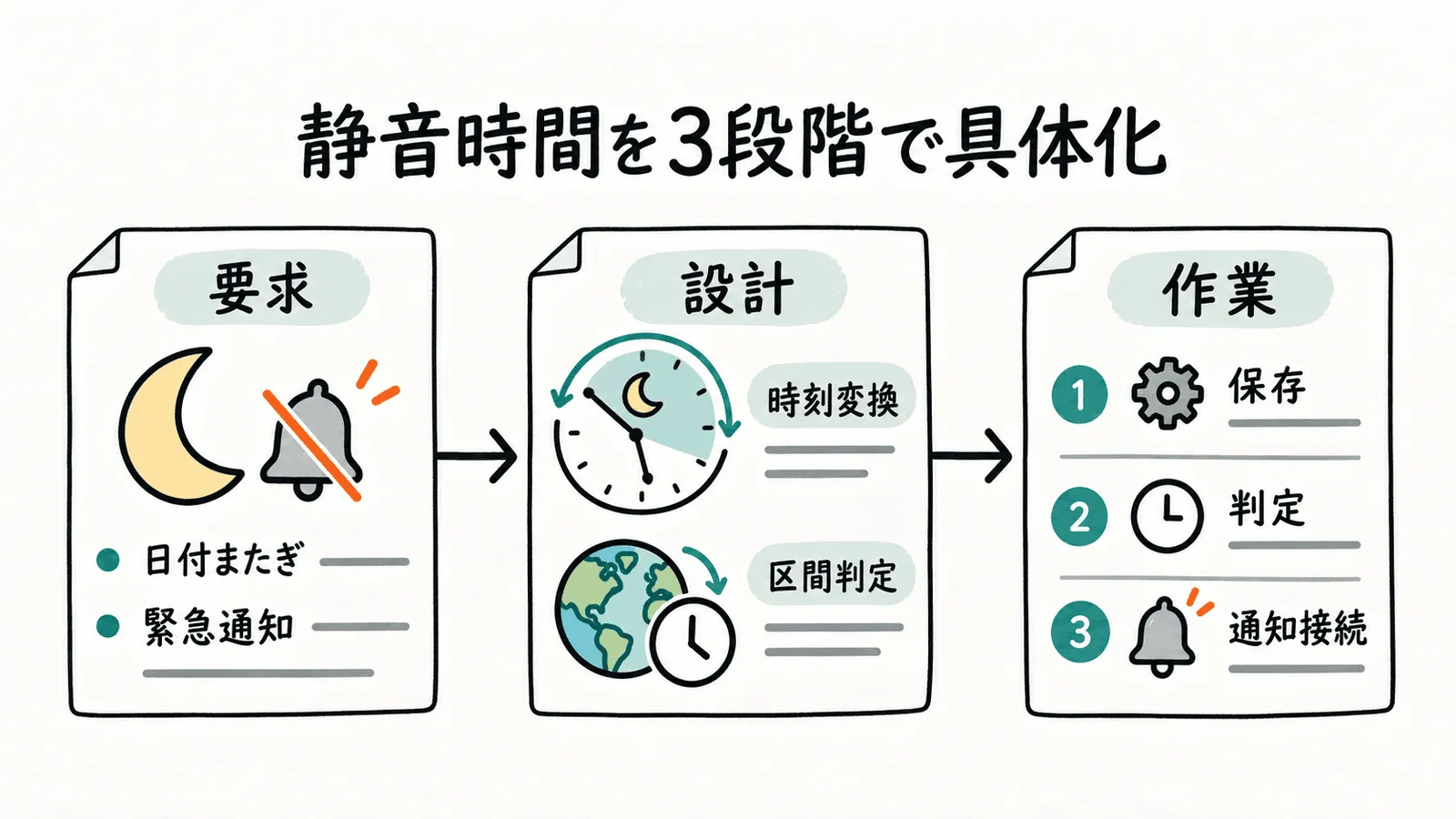
1. Turn Requirements into Acceptance Criteria
In requirements.md, describe the user's objectives and externally observable behavior.
Rather than choosing classes or libraries, establish the results the interface or notifications should produce in response to user actions.
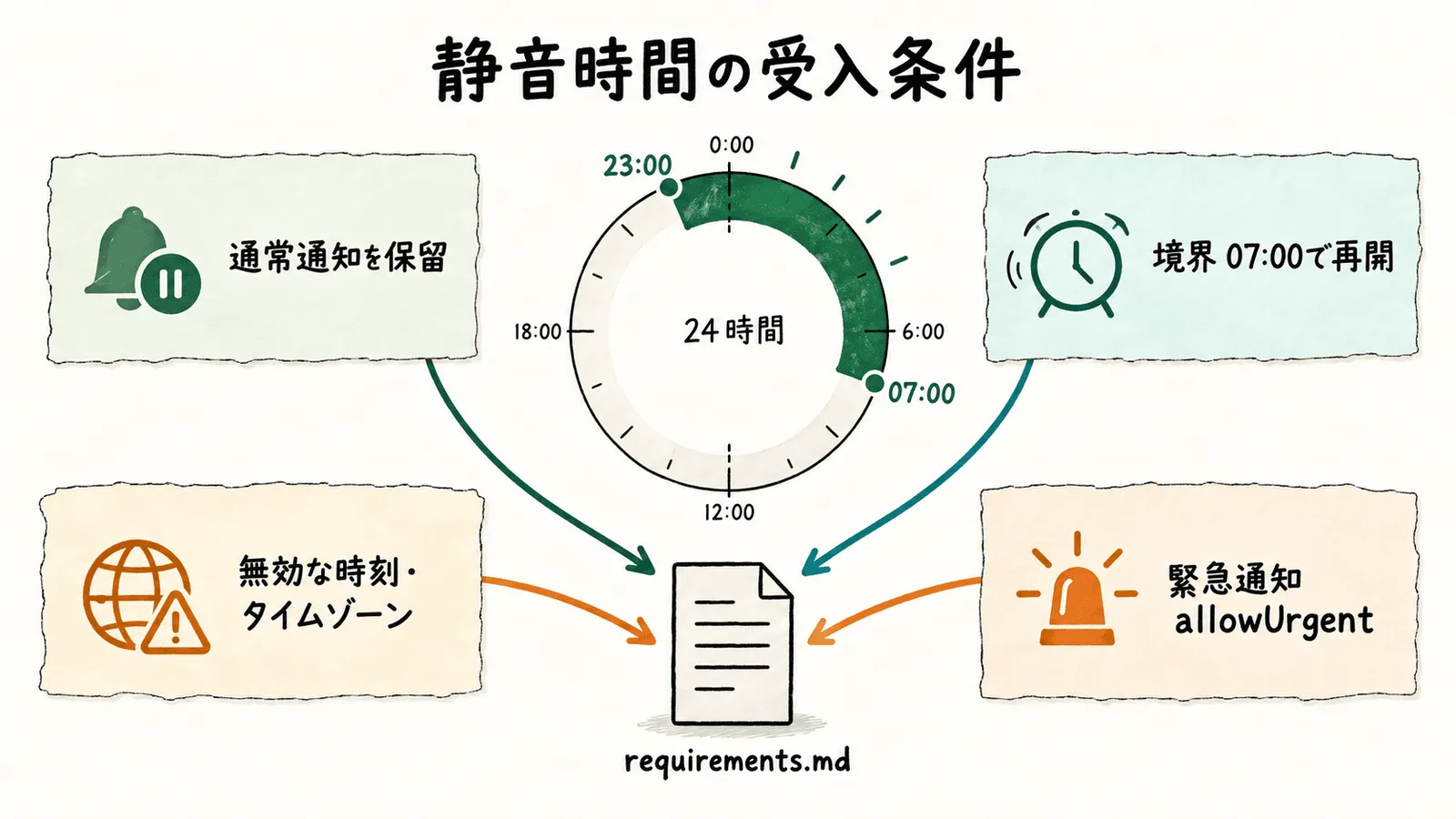
### Requirement 1: 日付をまたぐ静音時間

WHEN 利用者の現地時刻が23:00以上または07:00未満である
THE SYSTEM SHALL 通常通知を保留する

### Requirement 2: 緊急通知

WHEN 通知が緊急として分類され、allowUrgentがtrueである
THE SYSTEM SHALL 静音時間内でも通知を送る

WHEN 通知が緊急として分類され、allowUrgentがfalseである
THE SYSTEM SHALL 静音時間内の通知を保留する

### Requirement 3: 不正入力

WHEN startまたはendがHH:mm形式の有効な時刻ではない、
timeZoneが存在するIANA名ではない、
またはstartとendが同じである
THE SYSTEM SHALL 設定を保存せず入力エラーを返す
Requirement 1: 日付をまたぐ静音時間
WHEN 利用者の現地時刻が23:00以上または07:00未満である THE SYSTEM SHALL 通常通知を保留する
Requirement 2: 緊急通知
WHEN 通知が緊急として分類され、allowUrgentがtrueである THE SYSTEM SHALL 静音時間内でも通知を送る
WHEN 通知が緊急として分類され、allowUrgentがfalseである THE SYSTEM SHALL 静音時間内の通知を保留する
Requirement 3: 不正入力
WHEN startまたはendがHH:mm形式の有効な時刻ではない、 timeZoneが存在するIANA名ではない、 またはstartとendが同じである THE SYSTEM SHALL 設定を保存せず入力エラーを返す
The first condition makes explicit that the period from 11 p.m. until 7 a.m. the following day crosses midnight.
The condition 23:00以上かつ07:00未満 (at or after 23:00 AND before 07:00) can never be satisfied, so it uses または (OR) instead.
The two conditions in Requirement 2 establish the combinations of urgent notifications and allowUrgent.
If urgency alone were sufficient to send a notification, the behavior when the user has not enabled urgent notifications would remain undefined.
Requirement 3 rejects invalid times, nonexistent time zones, and equal start and end times before saving. It would also be possible to design equal start and end times as an all-day interval, but this Spec specifies an input error instead.
Running Analyze Requirements in the IDE or CLI allows further examination of comparisons across midnight, daylight saving time, boundary times, and the source of urgency classification. After answering the questions, verify that the answers are reflected in the acceptance criteria.
2. Define Time Evaluation in the Design
In design.md, define the data and processing needed to satisfy the reviewed requirements.
The minimum data contract for quiet hours looks like this.
type LocalTimeHHmm = string;

interface QuietHoursSetting {
  start: LocalTimeHHmm;
  end: LocalTimeHHmm;
  timeZone: string;
  allowUrgent: boolean;
}
LocalTimeHHmm is an alias for a string; the type alone cannot reject 25:90.
Before saving, parse the value as HH:mm and validate that hours range from 00 to 23 and minutes from 00 to 59.
Also confirm that timeZone resolves to an IANA time zone.
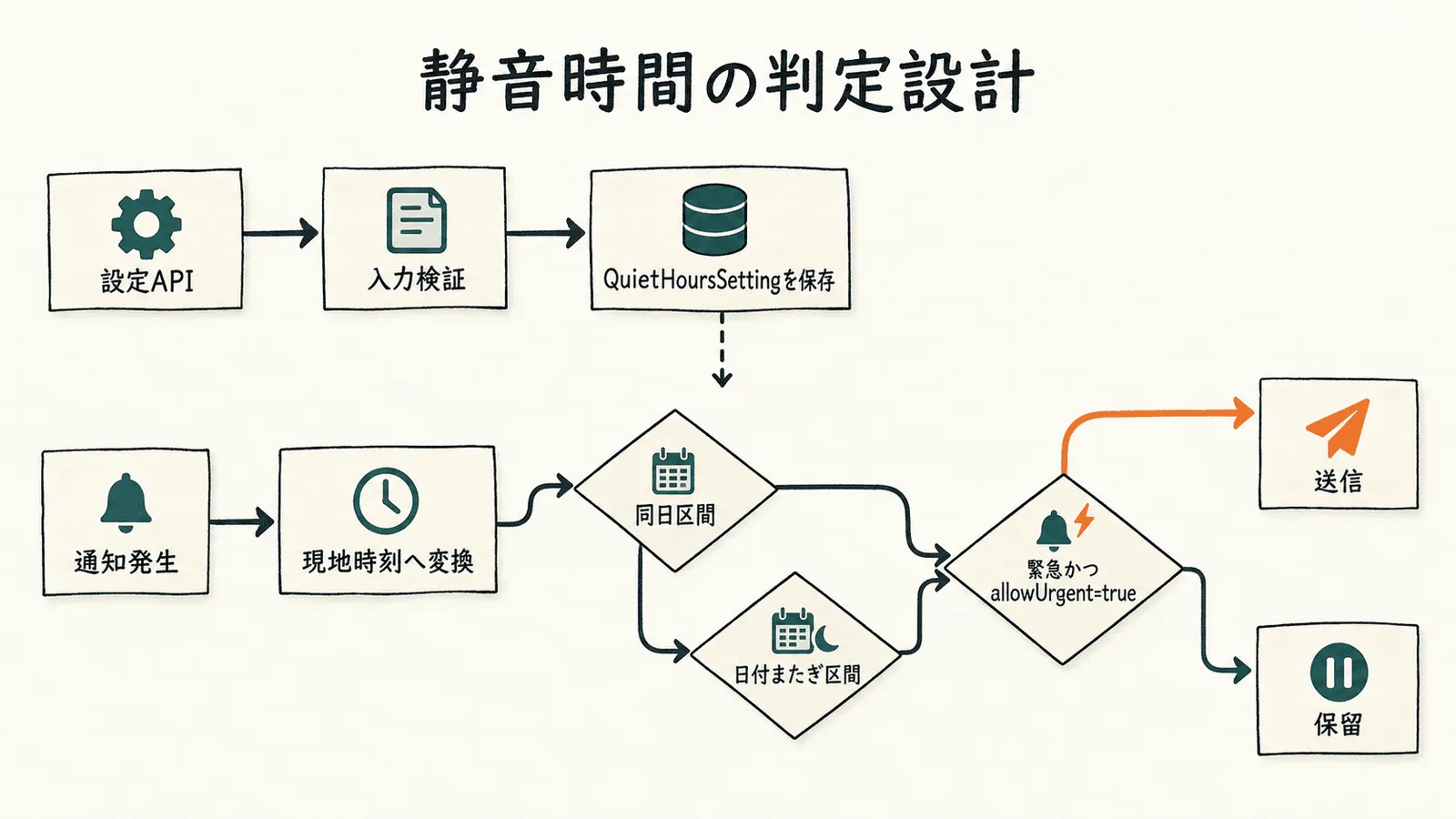
The evaluation logic converts the time at which a notification occurs into the user's time zone and then compares local times in minutes.
If start precedes end, quiet hours use the same-day interval start <= current < end.
If start follows end, the interval crosses midnight, so use current >= start || current < end.
Excluding the end time allows ordinary notifications to resume at exactly 7 a.m.
Bypass quiet-hours evaluation only when a notification is urgent and allowUrgent is true.
If allowUrgent is false, defer urgent notifications in the same way as ordinary notifications.
In addition to data types, design.md records the API for saving settings, persistence location, input-error responses, and responsibilities of the evaluation function.
It also specifies whether same-day intervals, intervals crossing midnight, boundary times, daylight saving time, and invalid input are checked by unit or integration tests.
3. Associate Tasks with Verification Results
In tasks.md, divide the design into implementable work.
Record dependencies so that notification evaluation is not connected before persistence is implemented.
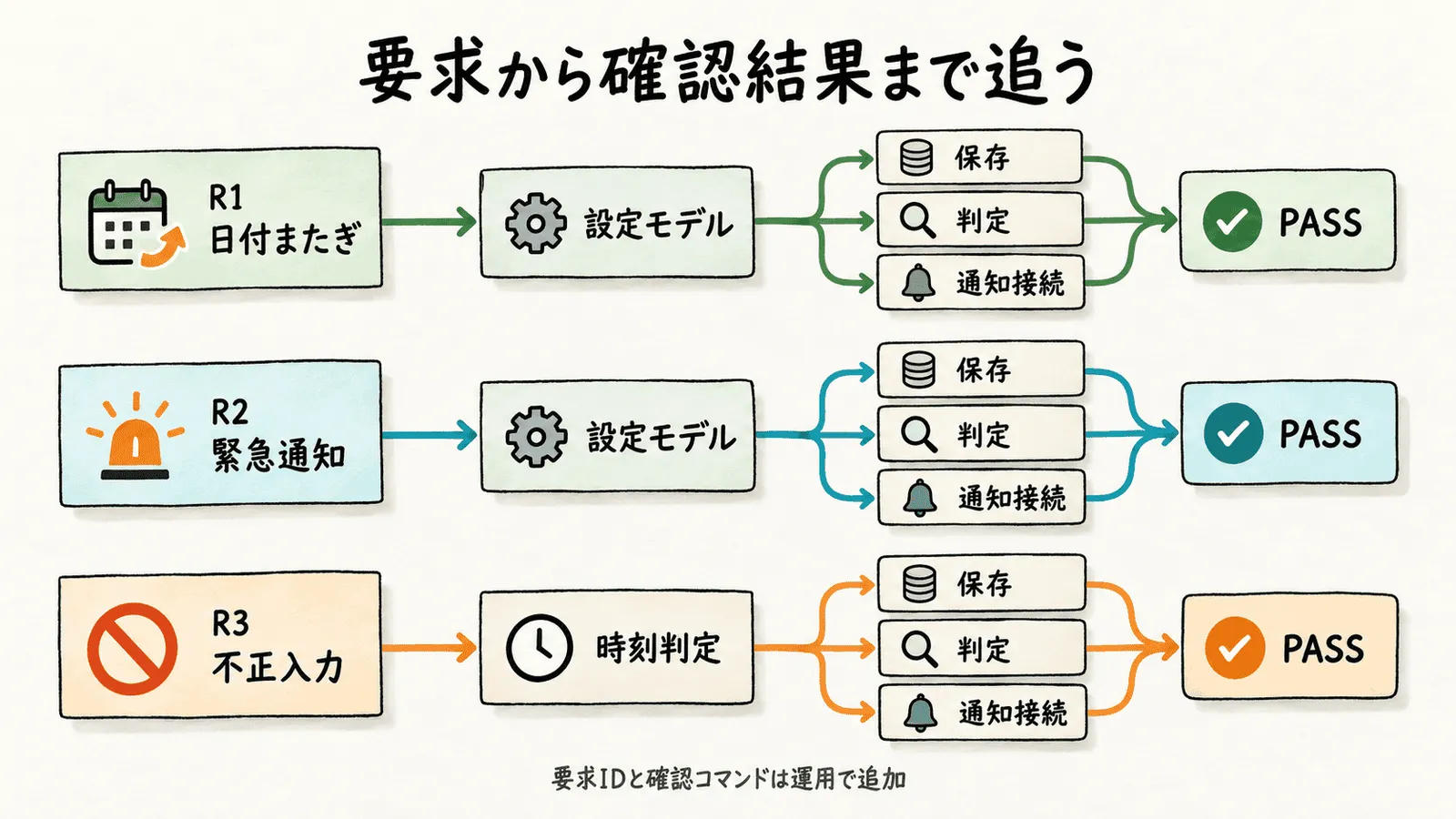
- [ ] 1. QuietHoursSettingを検証して保存する
  - 対応要求: Requirement 3
  - 確認: npm test -- quiet-hours-repository

- [ ] 2. 日付をまたぐ静音時間を判定する
  - 依存: 1
  - 対応要求: Requirement 1
  - 確認: npm test -- quiet-hours-evaluator

- [ ] 3. 通知処理へ静音判定を接続する
  - 依存: 2
  - 対応要求: Requirement 1、Requirement 2
- 確認: npm test -- notification-delivery-
- 対応要求: Requirement 3
- 確認: npm test -- quiet-hours-repository
-
- 依存: 1
- 対応要求: Requirement 1
- 確認: npm test -- quiet-hours-evaluator
-
- 依存: 2
- 対応要求: Requirement 1、Requirement 2
- 確認: npm test -- notification-delivery
The corresponding requirements and verification commands are not an automatic Kiro Specs feature for linking requirement IDs to test results. They are records added in this example to make it easier to trace work completion and acceptance-criteria verification.
Task 1 validates time formats, IANA time zones, and equal start and end times, saving only valid settings. Task 2 uses the persisted settings to evaluate same-day intervals and intervals crossing midnight. Task 3 connects that evaluation to actual notification processing.
If implementation reveals that the selected time zone library does not run in the required environment, simply adding a workaround task to tasks.md is insufficient.
Library selection and time conversion are technical decisions, so return to design.md and update it.
After reviewing the design, revise the affected tasks and tests, then resume implementation.
Feature Spec and Quick Spec
Both Feature Spec and Quick Spec create requirements.md, design.md, and tasks.md.
They create the same types of files but differ in when their contents are reviewed.
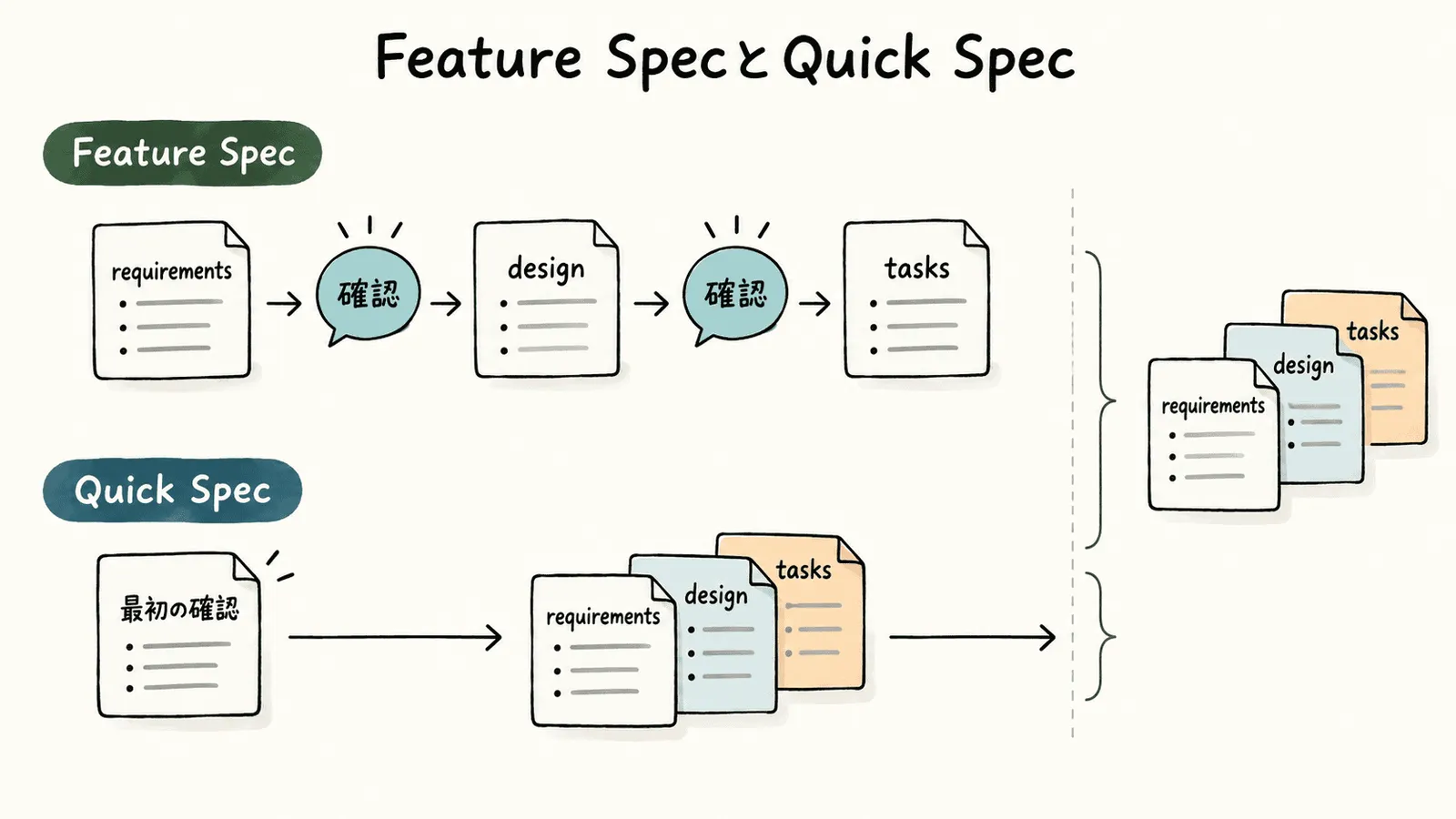
| Aspect | Feature Spec | Quick Spec |
|---|---|---|
| Initial input | Feature requirements or technical design | Desired implementation change |
| Review timing | Review requirements, design, and tasks at each stage | Generate all three files together after answering initial questions |
| Files created | requirements.md, design.md, tasks.md |
Same three files |
| Suitable changes | Unfamiliar domains, changes requiring iteration or explicit approval | Familiar repetitive work, rapid prototyping |
In a Requirements-First Feature Spec, you cannot proceed to design until you have reviewed the requirements, or proceed to the task list until you have reviewed the design. In Design-First, review the design before creating requirements and tasks. Feature Spec suits unfamiliar domains, changes where requirements or design must be established iteratively, compliance or high-risk changes, and work requiring explicit team approval points.
In Quick Spec, after you answer Kiro's initial questions, it creates all three files together. Because reviews between stages can be omitted, Quick Spec can be used for familiar repetitive changes and prototypes that prioritize speed over review.
Files generated by Quick Spec can also be edited afterward. If more unresolved decisions emerge during a change, do not continue implementation simply to preserve generation speed; reread the three files. Review the areas whose review was skipped, align the requirements, design, and task list, and then implement.
Boundaries of Completion Decisions
Having all three files and completing items in tasks.md does not automatically prove that the implementation satisfies the acceptance criteria.
Kiro's progress indicators and project quality verification are separate results.
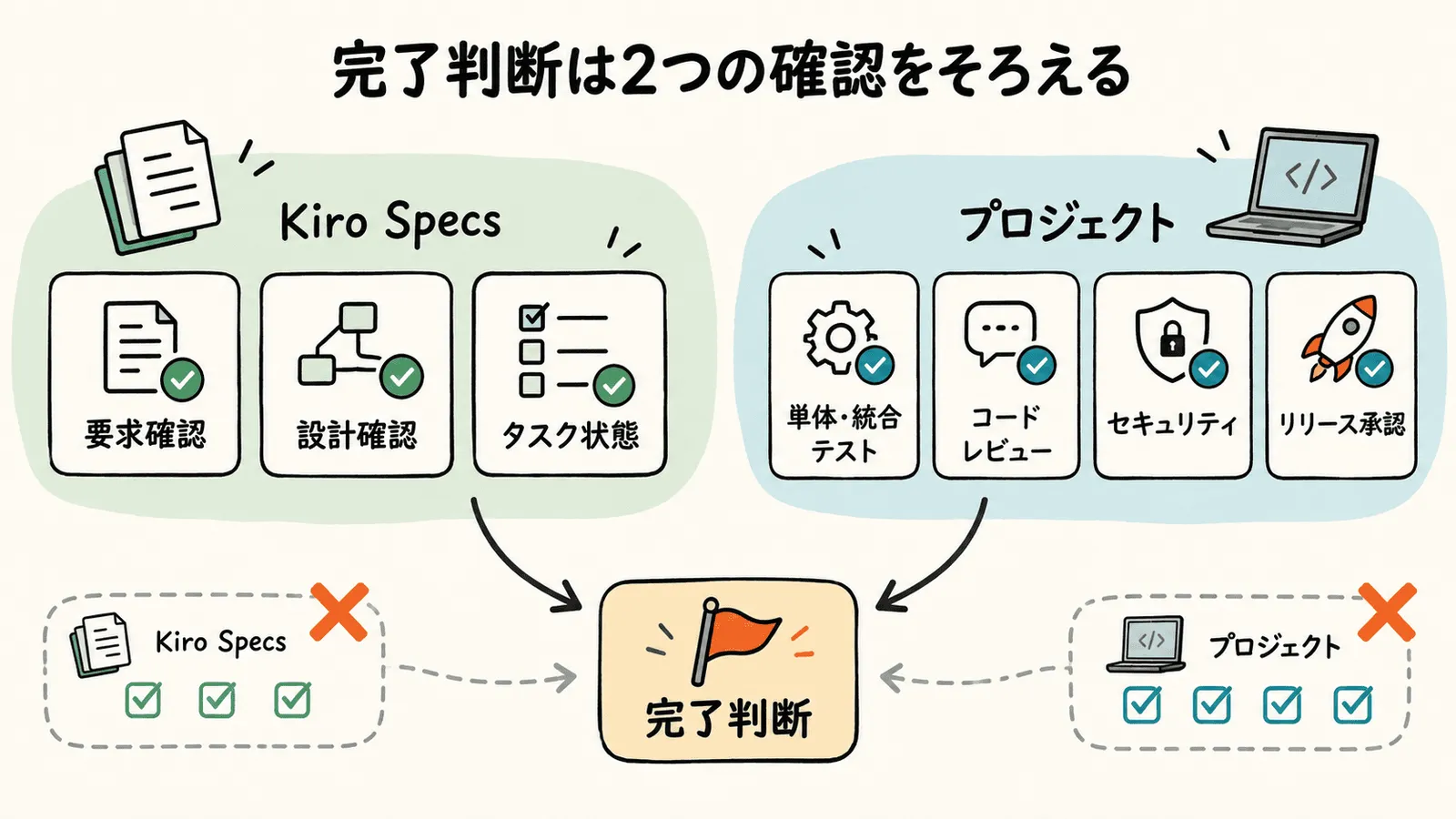
Kiro Specs lets you inspect requirements, design, tasks, and task progress. Project-specific unit tests, integration tests, code reviews, security checks, and release approvals must each be checked separately.
For the quiet-hours example, consider implementation complete when the following shared conditions are met.
- All required tasks are complete.
requirements.mdrecords crossing midnight, boundary times, urgent notifications, and invalid input;design.mdrecords time zone conversion and interval evaluation; and all three files match the latest changes.- The code diff matches
design.mdand the intended scope. - Unit and integration tests verify the acceptance criteria, and code review has passed.
Optional tasks, security checks, and release approvals follow the project's definition of done.
If requirements change, do not treat prior tasks as complete merely because they have completion checkmarks.
Update design.md and tasks.md to reflect the new requirements, and recheck the affected code and tests.
Execution permissions are also separate from completion decisions. In the IDE and CLI, check the operations actually authorized; on Web, check the scope of the cloud sandbox and external connections. Even if implementation matches the specification, reconsider the work scope if unnecessary files or external services were accessed.
Suitable Use Cases and Considerations
Kiro Specs is suited to work that proceeds from requirements to implementation in Kiro's IDE, CLI, or Web while separating review into requirements, design, and task stages. Choose Feature Spec or Quick Spec based on the number of unresolved decisions and when reviews should take place.
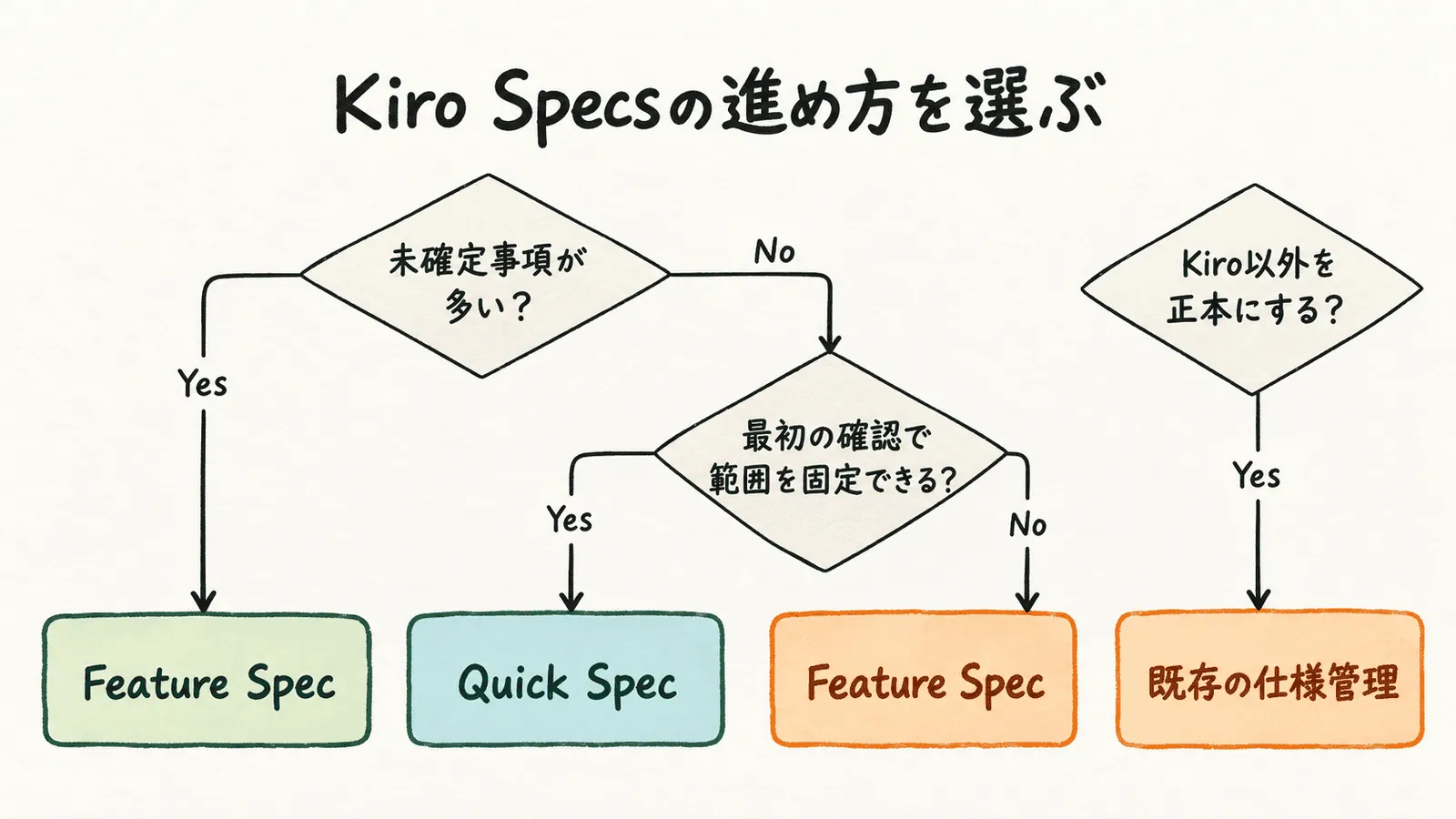
Choose Feature Spec under the following conditions.
- The domain is unfamiliar, and requirements or design must be determined iteratively.
- Compliance or high-risk checks are required.
- Explicit team approval points are necessary.
- Implementation should be divided into multiple dependent tasks.
Choose Quick Spec under the following conditions.
- The change is familiar and repetitive.
- The prototype prioritizes speed over review.
- The implementation scope can be established through the initial questions alone.
- The three files and code diff can be reviewed after generation.
If the same workflow is to be used in AI environments other than Kiro, first decide whether Kiro's progress will serve as the authoritative development-process record. If existing tickets, design documents, or approval interfaces are authoritative, duplicating the same information in Specs can lead to missed updates. Define the responsibilities of existing records and choose a single place to approve requirements and check progress.
It is also important not to make creation of the three files an end in itself.
If requirements remain ambiguous, return to requirements.md; if the implementation approach changes, update design.md; if the work scope changes, correct tasks.md.
Use the three files to keep reviewed decisions and actual code aligned.
Conclusion
Kiro Specs divides a feature into requirements.md, design.md, and tasks.md, allowing implementation to proceed while reviewing requirements, design, and tasks.
Requirements-First derives the design from user-visible behavior, while Design-First derives achievable requirements from technical constraints.
Feature Spec reviews each stage in Requirements-First or Design-First order, whereas Quick Spec creates the same three files together after an initial review. Whichever you choose, do not end quality verification merely because tasks are marked complete; independently check the code diff, tests, reviews, and execution permissions.
In the quiet-hours example, the requirements describe conditions crossing midnight, the design establishes time zone conversion and interval evaluation, and persistence, evaluation, and notification integration are split into dependency-ordered tasks. Maintaining these relationships makes it possible to determine which file to revisit and what to recheck when conditions change during implementation.
I also write articles elsewhere; feel free to explore them.


References
The specifications for Kiro Specs, Steering, and execution permissions are available in the official Kiro documentation.
